In modern web development, the way we deploy our applications is as critical as the code we write. If you've come this far looking for wordpress with dockerIn my experience as a senior developer, you probably already realize that traditional shared hosting has a glass ceiling. In my experience as a senior developer, the transition to a container architecture is not just a technical improvement; it is a business strategy to ensure scalability, security and speed.
Today we are going to leave basic installations aside. We are going to build a high performance stack using Docker Composeorchestrating specific images such as wordpress:fpm, mariadb:latest, redis:7-alpine and opensearchproject/opensearch:2. Get ready to professionalize your infrastructure.
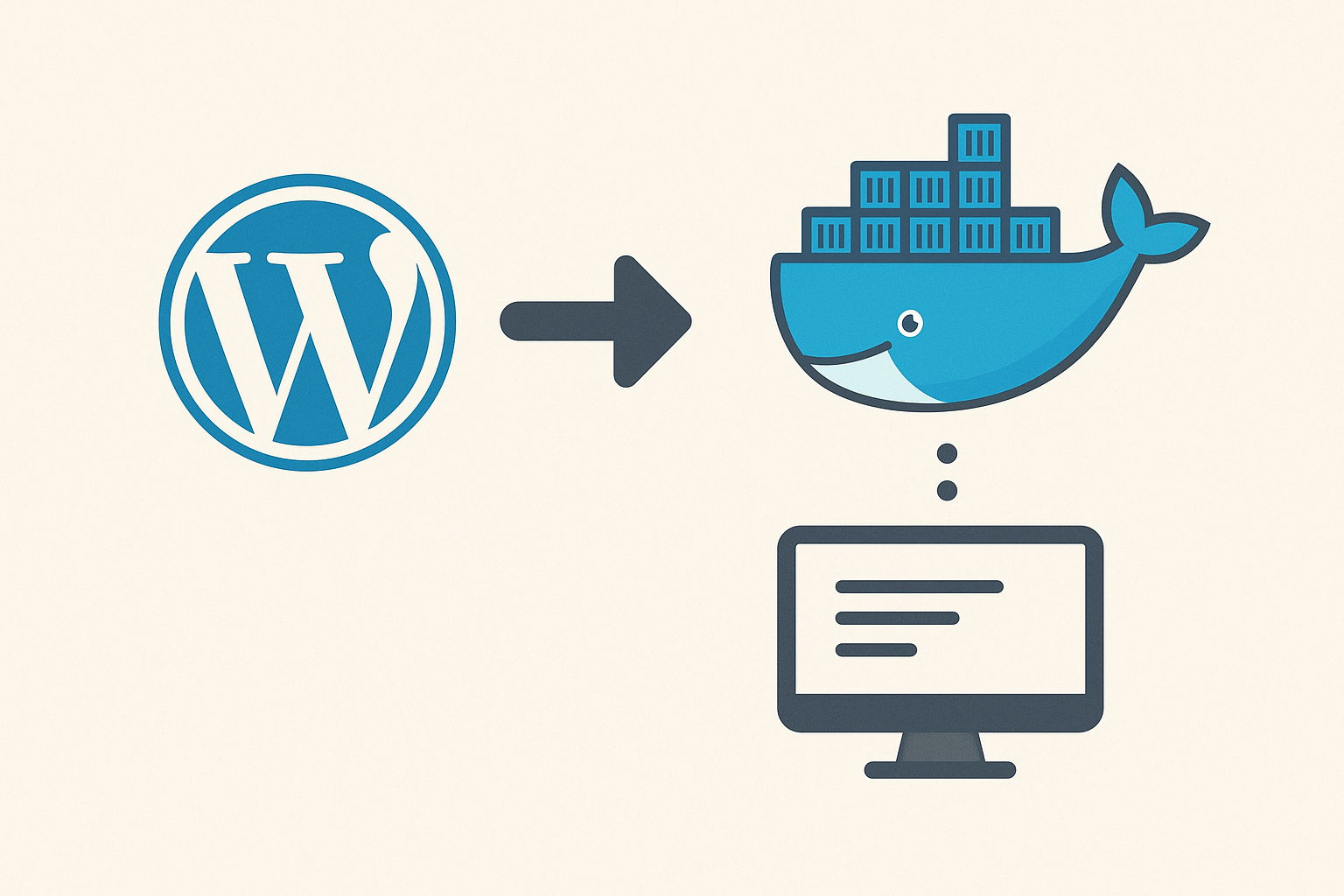
Why choose WordPress with Docker over traditional hosting?
Containerization has revolutionized the way we manage servers. Unlike installing a LAMP server (Linux, Apache, MySQL, PHP) directly on the operating system, Docker allows us to isolate each service.
In my day-to-day work with clients who require high availability, the use of wordpress with docker offers undeniable advantages:
- Parity between environments: What works in my shop, works in production. No surprises.
- Isolation: If the database fails or needs updating, it does not affect the web server configuration.
- Scalability: It is trivial to add more nodes or services (such as Redis or OpenSearch) without reconfiguring the entire operating system.
Infrastructure and architectural requirements
Before writing a single line of code, let's talk about the hardware. The professional deployment of this architecture requires its own server (VPS, Cloud or Dedicated). Attempting this on shared hosting is unfeasible due to permissions and resource restrictions.
The recommended architecture involves running isolated containers operating on the same server but with independent configurations. For a deeper understanding of the basic concepts of this separation, I recommend reading about how to deploy WordPress with a Docker containerwhere the importance of distinguishing between the web server and the database is detailed.
Setting the stage: Docker Compose
Although it is possible to lift containers one at a time with the command docker runthe best way to do this-and the only way I recommend for production environments-is by means of Docker Compose. This tool allows us to define our entire infrastructure in a single YAML file.
If you are setting up a new server, you need to install Docker Compose manually. The standard process involves downloading the binary to /usr/local/bin/docker-compose and assign execution permissions. According to Arsys technical documentation on Docker installation and configurationIf you want to create a specific working directory, it is vital to create a specific working directory to keep order, e.g. mkdir wp-docker.
Stack Architecture: Image Selection
For this tutorial, we will not use the default settings. We will optimize the performance using the image FPM of WordPress. Here I explain why I have selected these specific versions:
- wordpress:fpmUnlike the standard image that includes Apache, the FPM (FastCGI Process Manager) version is much more efficient at handling high loads of PHP traffic, although it requires a front-end web server (such as Nginx) to serve the static files.
- mariadb:latestMariaDB usually offers better performance than MySQL on complex WordPress queries.
- redis:7-alpineRedis will be used for object caching (Object Cache), which drastically reduces database queries.
- opensearchproject/opensearch:2: For large sites or WooCommerce, the native WordPress search is slow. OpenSearch (a fork of Elasticsearch) solves this.
Configuration Step by Step
1. Environment and Security Variables (.env)
Safety first: Never type passwords directly into your file. docker-compose.yml. We will use a file .env to inject the credentials.
Database configuration is performed by injecting specific environment variables. Critical ones include MYSQL_ROOT_PASSWORD, MYSQL_DATABASEand the user's credentials. This is essential to maintain security.
Create a file named .env in your project directory:
# Database
DB_NAME=wordpress_db
DB_USER=wp_user
DB_PASSWORD=a_very_secure_and_long_password_123!
DB_ROOT_PASSWORD=root_password_super_secret_password

# WordPress
WP_URL=mydomain.com
WP_TITLE="My Dockerized Site".
WP_ADMIN_USER=admin
WP_ADMIN_PASSWORD=admin_password_secure
WP_ADMIN_EMAIL=admin@midominio.com

# Redis & OpenSearch
REDIS_HOST=redis
OPENSEARCH_HOST=opensearch
2. The Docker Compose File
The complete configuration is shown below. Note that when using wordpress:fpmwe need an additional container of Nginx to handle HTTP requests.
Create the file docker-compose.yml:
version: '3.8'.

services:
  # Database.
  db:
    image: mariadb:latest
    container_name: wp_db
    restart: always
    environment:
      MYSQL_DATABASE: ${DB_NAME}
      MYSQL_USER: ${DB_USER}
      MYSQL_PASSWORD: ${DB_PASSWORD}
      MYSQL_ROOT_PASSWORD: ${DB_ROOT_PASSWORD}
    volumes:
      - db_data:/var/lib/mysql
    networks:
      - wp-network

  # WordPress FPM
  wordpress:
    depends_on:
      - db
      - redis
      - opensearch
    image: wordpress:fpm
    container_name: wp_app
    restart: always
    environment:
      WORDPRESS_DB_HOST: db
      WORDPRESS_DB_USER: ${DB_USER}
      WORDPRESS_DB_PASSWORD: ${DB_PASSWORD}
      WORDPRESS_DB_NAME: ${DB_NAME}
    volumes:
      - wp_data:/var/www/html
    networks:
      - wp-network

  # Web Server (Nginx) - Required for FPM image
  webserver:
    depends_on:
      - wordpress
    image: nginx:alpine
    container_name: wp_nginx
    restart: always
    ports:
      - "80:80"
    volumes:
      - wp_data:/var/www/html
      - ./nginx-conf:/etc/nginx/conf.d
    networks:
      - wp-network

  # Redis (Object Cache)
  redis:
    image: redis:7-alpine
    container_name: wp_redis
    restart: always
    networks:
      - wp-network

  # OpenSearch (Advanced Search)
  opensearch:
    image: opensearchproject/opensearch:2
    container_name: wp_opensearch
    environment:
      - discovery.type=single-node
      - "OPENSEARCH_JAVA_OPTS=-Xms512m -Xmx512m"
      - bootstrap.memory_lock=true
    ulimits:
      memlock:
        soft: -1
        hard: -1
    volumes:
      - opensearch_data:/usr/share/opensearch/data
    networks:
      - wp-network

volumes:
  db_data:
  wp_data:
  opensearch_data:

networks:
  wp-network:
    driver: bridge
Database and Persistence Details
As noted in the Free Software Classroom Docker WorkshopIf you are using MariaDB, it is crucial to handle the MariaDB container correctly. It is recommended to start it in such a way that it does not publish external ports (note that in our compose there is no ports under db), keeping the database accessible only internally to the WordPress container.
In addition, persistence is vital. In the code above, we have defined volumes. This ensures that information is not lost when the containers are restarted, linking a virtual volume to the directory /var/lib/mysqlas recommended for build a WordPress with Docker securing the data.
3. Configuring Nginx for FPM
Since we are using the super optimized version wordpress:fpmIf we want to use PHP, we need to tell Nginx how to process the PHP files. Create a folder nginx-conf and inside a file default.conf:
server {
    listen 80;
    server_name localhost;

    root /var/www/html;
    index index.php;

    access_log /var/log/nginx/access.log;
    error_log /var/log/nginx/error.log;

    location / {
        try_files $uri $uri/ /index.php?$args;
    }

    location ~ \.php$ {
        try_files $uri =404;
        fastcgi_split_path_info ^(.+.php)(/.+)$;
        fastcgi_pass wordpress:9000;
        fastcgi_index index.php;
        include fastcgi_params;
        fastcgi_param SCRIPT_FILENAME $document_root$fastcgi_script_name;
        fastcgi_param PATH_INFO $fastcgi_path_info;
    }
}
Advanced configuration: wp-config.php dynamic
One of the most powerful tricks when working with wordpress with docker is to make our file wp-config.php read the system environment variables directly, instead of having the credentials written in PHP code.
Normally, Docker injects these variables automatically if you use the official image, but for custom Redis or OpenSearch configurations, I recommend that you modify your wp-config.php to include this:
// Dynamic configuration from .env
define( 'DB_NAME', getenv('WORDPRESS_DB_NAME') );
define( 'DB_USER', getenv('WORDPRESS_DB_USER') );
define( 'DB_PASSWORD', getenv('WORDPRESS_DB_PASSWORD') );
define( 'DB_HOST', getenv('WORDPRESS_DB_HOST') );

// Redis configuration
define( 'WP_REDIS_HOST', 'redis' );
define( 'WP_REDIS_PORT', 6379 );

// Force SSL if we are behind a reverse proxy (common in prod)
if (isset($_SERVER['HTTP_X_FORWARDED_PROTO']) && $_SERVER['HTTP_X_FORWARDED_PROTO'] === 'https') {
    $_SERVER['HTTPS'] = 'on';
}
Deployment and validation
Once you have the docker-compose.ymlthe file .env and Nginx configuration, deployment is extremely simple.
Go to your project folder and execute:
docker-compose up -dThe parameter -d (detached) is essential so that processes run in the background and do not stop if you close the terminal.
Integrating additional services
Once WordPress is running, to take advantage of the power of the extra images we have included:
- Redis: Install the "Redis Object Cache" plugin in WordPress. When activated, it will automatically detect the host
rediswe define in the compose. - OpenSearch: I recommend using a plugin like "ElasticPress" or similar OpenSearch compatible. Configure the host as
http://opensearch:9200. This will offload your MariaDB database from heavy search queries.
Conclusion
Implement wordpress with docker using a separate architecture with FPM, Nginx, Redis and OpenSearch puts your website in a higher category of performance and security. You've gone from a simple blog to a robust and scalable web application.
In my experience, the time invested in setting up this environment is more than recouped thanks to the loading speed (which improves SEO and conversions) and the ease of backups and migrations. Don't be afraid of the terminal; it is the best ally for the success of your web projects.