In my experience as a Senior WordPress Developer, one of the most recurring questions I get from entrepreneurs and junior developers is. how to make WordPress local efficiently. The short answer is that the landscape has changed dramatically in recent years.
While classic tools like XAMPP still exist, today we have specialized solutions that streamline the workflow, allowing us to focus on what really matters: creating effective websites that increase revenue. In this extensive guide, we'll break down the best current options, from modern solutions like Local by Flywheel and Docker, to the classic, manual setup with XAMPP.
Why is it critical to develop in a local environment?
Before diving into the technical installation, it is essential to understand why no professional works directly on the live (or "in production") site. Creating a local site is completely free and is the industry standard for a number of security and efficiency reasons.
Based on industry best practices and authoritative resources, we can highlight the following benefits:
- Security and "Sandbox": A local environment allows you to test new themes, plugins and critical updates without risking the functionality of the actual site. If something breaks ("fatal flaw"), only you see it, and your business continues to operate without interruption.
- Speed of development: By working locally, you eliminate internet latency. Uploading files, saving CSS or PHP changes is instantaneous because everything happens inside your hard drive.
- Offline Development: As he rightly points out Hostinger's guide to local installationThis allows you to work on site without relying on network speed or a reliable connection, ideal for working while traveling or in areas with poor connectivity.
- Total privacy: It is ideal for redesigning websites privately so that neither search engines nor visitors see the changes before they are finished. Google will not index your half-done site, which is crucial for SEO.
Expert Advice
Never underestimate the cost savings. Developing locally allows you to build the entire project before investing a single penny in domain or hosting. You only pay when the website is ready to go out into the world.
The Evolution: Why is XAMPP no longer the "best" choice?
For over a decade, the standard answer to "how to make wordpress local" was to install XAMPP (or its cousins WAMP/MAMP). XAMPP is a free software package that installs Apache, MariaDB/MySQL and PHP on your computer.
However, in modern WordPress development, XAMPP presents certain frictions:
- Requires manual configuration of ports and databases.
- It does not isolate environments (if you update XAMPP PHP, it affects all your local projects).
- Does not include SSL certificate natively (causing browsers to mark your local site as "Not Secure").
For these reasons, although we will explain how to use XAMPP because of its popularity and educational value, my professional recommendation leans towards modern tools like Local o Docker.
Option 1: Local (The modern and recommended solution)
Formerly known as "Local by Flywheel", this is currently the most efficient tool for most users, from beginners to advanced developers.
Advantages of using Local
Unlike manual server configuration, Local is designed specifically for WordPress. It creates a lightweight virtual machine or an isolated container for each website. This means you can have one site running PHP 7.4 and another running PHP 8.2 simultaneously without conflicts.
- One-click installation: Install WordPress, configure the database and edit the wp-config.php file automatically.
- Automatic SSL: With one click, your local site has HTTPS, vital for testing payment gateways or APIs.
- Blueprints: You can save a "template" of your favorite plugins and themes to start new projects quickly.
- Integrated Mailhog: Capture the emails that WordPress sends locally so you can test forms without sending real spam.
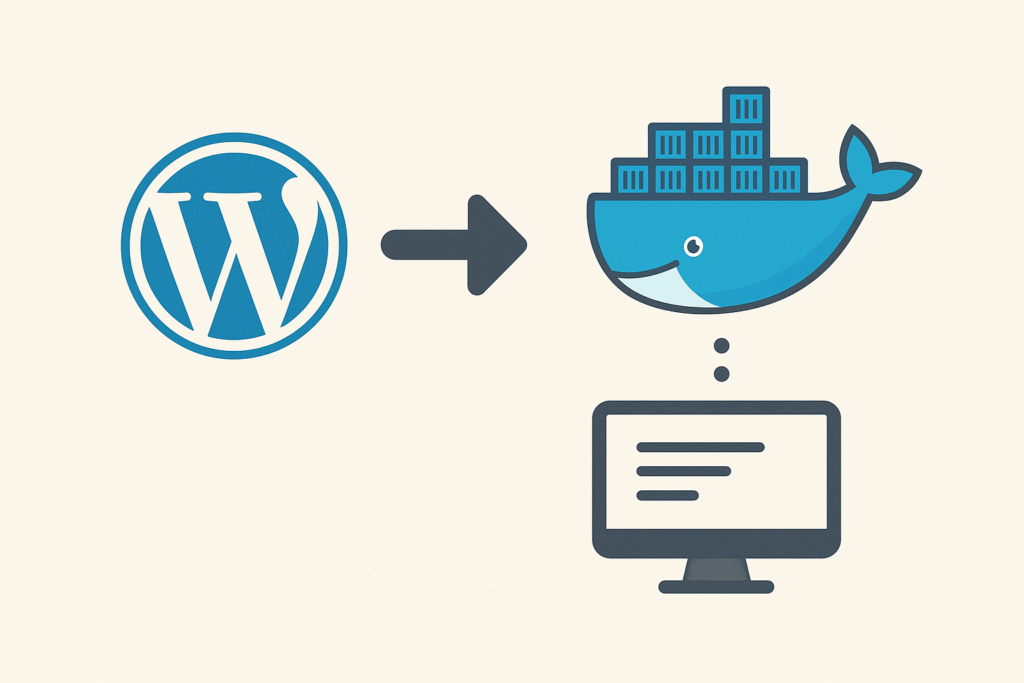
Option 2: Docker (For advanced developers)
Whether your goal is to have total control over the infrastructure or to work as a team ensuring that everyone has *exactly* the same versions of software, Docker is the software industry standard.
Docker uses "containers". To know how to make wordpress local with Docker, you need a file docker-compose.yml. Although the learning curve is high, the flexibility is unmatched.
version: '3.1'.

services:
  wordpress:
    image: wordpress:latest
    restart: always
    ports:
      - 8080:80
    environment:
      WORDPRESS_DB_HOST: db
      WORDPRESS_DB_USER: exampleuser
      WORDPRESS_DB_PASSWORD: examplepass
      WORDPRESS_DB_NAME: exampledb
    volumes:
      - ./wp-content:/var/www/html/wp-content

  db:
    image: mysql:5.7
    restart: always
    environment:
      MYSQL_DATABASE: exampledb
      MYSQL_USER: exampleuser
      MYSQL_PASSWORD: examplepass
      MYSQL_RANDOM_ROOT_PASSWORD: '1
    volumes:
      - db_data:/var/lib/mysql

volumes:
  db_data:
This approach is ideal if you are developing complex PHP solutions or Vue.js integrations and need to replicate the production environment to the millimeter.
Option 3: XAMPP (The classic and manual way)
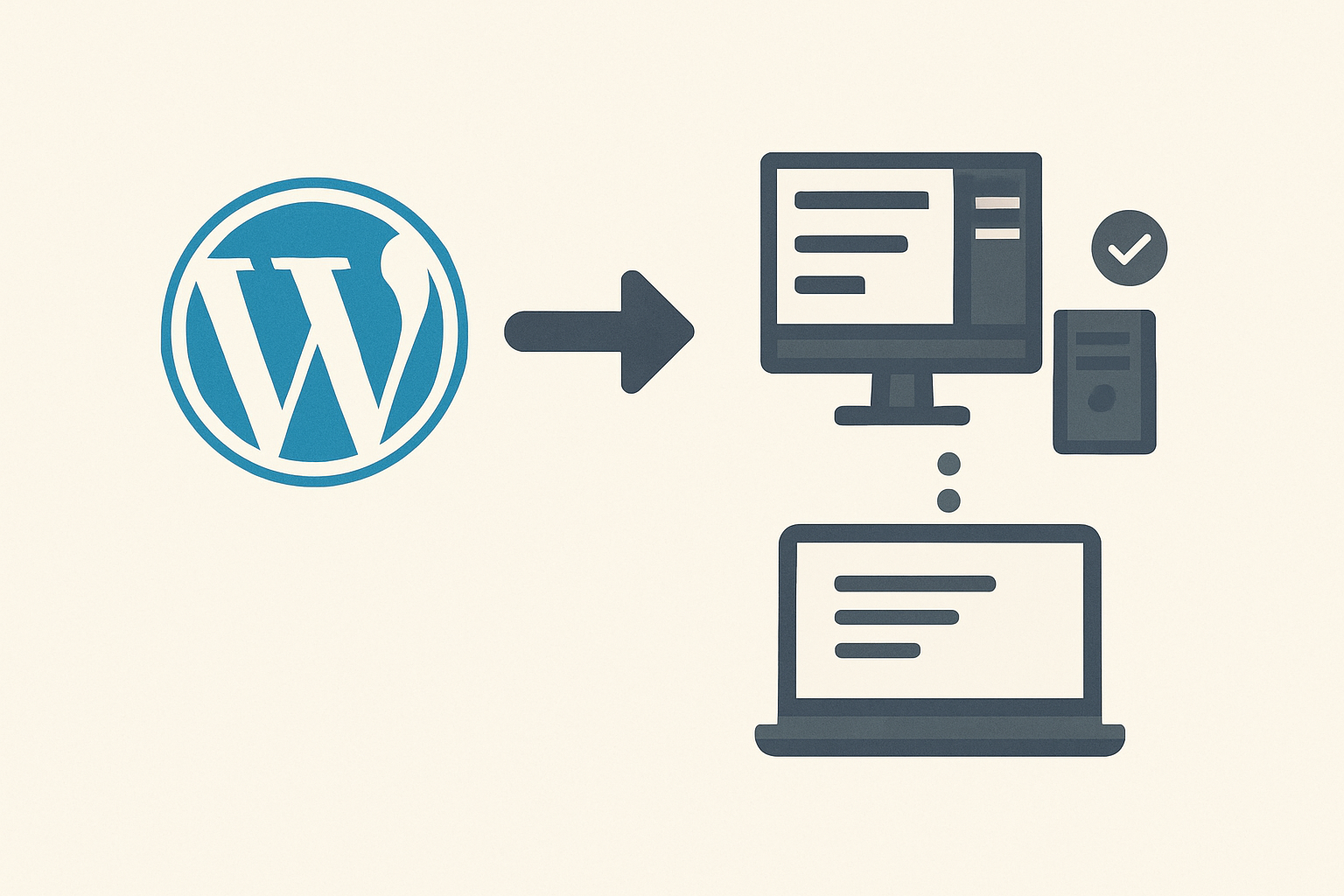
Despite the new tools, understanding XAMPP is excellent for understanding how the "back room" of a web server works. XAMPP turns your computer into a server capable of processing PHP and managing MySQL databases, simulating a real hosting.
Below, I detail the process step by step, integrating crucial information from expert sources to avoid common mistakes.
Step 1: Download and Correct Installation
To simulate a hosting on your computer, you must download XAMPP from the official Apache Friends site. This tool is cross-platform (Windows, Linux, OS X). However, there is a critical technical detail that many overlook when choosing the version.
According to experts in My Web PositioningIf you are using XAMPP, it is crucial to choose the correct version of XAMPP to avoid incompatibilities. It is explicitly advised to Do NOT download the latest version if it contains a version of PHP that is too new (as 8.1.x was in its initial release) that may not be compatible with certain older plugins. Opting for stable versions such as 8.0.xx or 7.4.xx usually ensures more stable operation for general development.
Step 2: Windows Permissions and Execution
If you are a Windows user, the process has its peculiarities. The workflow consists of installing XAMPP, configuring the panel, creating the database and installing WordPress.
When installing, it is recommended to run the installer as administrator (right click > "Run as administrator"). During the process, you are likely to see a warning about User Account Control (UAC) suggesting not to install under
C:\Program Files. Ignore the fear, but heed the warning: install XAMPP in the default folder (generally C:\xampp) to avoid write permissions problems later on.Step 3: Activate the Server
Once installed, open the "XAMPP Control Panel". You must start two services:
- Apache: It is the web server.
- MySQL: It is the database manager.
If the indicators turn green, you have succeeded. If they appear red, it's usually a port conflict (Skype or VMWare usually occupy port 80), which is one of the reasons I recommend more modern tools that handle this automatically.
Step 4: Create the Database
WordPress needs a database to store your posts, users and settings. In XAMPP, this is done manually:
- Go to your browser and type
localhost/phpmyadmin. - Click on the "Databases" tab.
- Type in a name for your database (e.g., "database"):
wordpress_local) and select "Collation" asutf8_general_cioutf8mb4_unicode_ci. - Click on "Create". You don't need to create tables, WordPress will do it for you.
Step 5: Installing WordPress
Now that you have the environment, you need the software.
- Download WordPress from en.wordpress.org.
- Unzip the ZIP file.
- Copy the folder
wordpressand paste it into the folderhtdocsof your XAMPP installation (usuallyC:\xampppps). - Rename the folder if you want (e.g:
my-project). - Go to your browser and enter
localhost/my-project.
Here the 5-minute installation wizard will start. When it asks for the database data, use the following XAMPP standards:
- Name of the database: The one you created in step 4.
- User name:
root - Password: [Leave blank/empty] [Leave blank/empty] [Leave blank/empty] [Leave blank/empty] [Leave blank/empty
- Database server:
localhost
Quick Comparison: Which one to choose?
To consolidate what I have learned about making wordpress local, here is my professional verdict based on efficiency and potential revenue (time is money):
- Use Local (Flywheel): If you are a WordPress designer, implementer or developer who wants to get started now. It's fast, secure and has native SSL support. It's the option I use for 90% for quick projects.
- Use XAMPP: If you are a computer science student and need to learn how to configure Apache and MySQL manually, or if you need a generic PHP environment not exclusive to WordPress.
- Use Docker: If you work in a large development team, use continuous integration (CI/CD) or develop complex applications that require very specific library versions.
Final Considerations on SEO and Migration
It is vital to remember that even if we optimize our local site for SEO (titles, meta descriptions, heading structure), Google cannot crawl your local site. All the positioning work will take effect once you migrate the site to a real hosting.
To bring your local work to the real web (migration), there are excellent plugins like Duplicator or All-in-One WP Migration, which package all your work in the local environment and deploy it to production in minutes.
Learn how to make wordpress local is the first step towards professionalization in web development. Whether you choose the modern route with Local or the educational route with XAMPP, the important thing is that you now have a safe environment to experiment, break things and learn how to create amazing websites without fear.