Deciding to change server, domain or redesign the architecture of your site is one of the most critical decisions in the life of a digital business. The question that terrifies all my clients is always the same: How to migrate a website without losing SEO? This is not an unfounded fear; a poorly executed migration can erase years of organic SEO work in a matter of days, plummeting traffic and, consequently, revenue.
In my experience as a WordPress developer, I've seen solid projects fall apart because of forgetting a simple rule in the robots.txt or by not mapping the redirects correctly. This guide is not just theoretical; it is the step-by-step process I use to ensure that the transition is invisible to users and, most importantly, to Google.
Understanding the magnitude: What is SEO migration?
Before touching a single line of code, we must categorize the movement. Not all migrations carry the same danger. According to Hiberus experts, it is crucial to perform an initial assessment to distinguish the types of migration and their associated risks. We can talk about protocol changes (HTTP to HTTPS), domain changes, information architecture redesigns or CMS changes.
Warning: A merely aesthetic change (changing the WordPress template) usually has a low impact, but if you alter the URLs (the structure of the permalinks), the risk rises to a critical level.
To learn more about risk assessment and types of movement, I recommend you read about the migration classification and impact assessmentThis will give you a clear perspective of what you are up against.
Phase 1: Planning and audit of the current site
The success of knowing how to migrate a website without losing SEO lies in the 80% of planning and the 20% of execution. You can't move what you don't know. In this phase, your goal is to create an immutable inventory of your entire website.
URL Inventory: Your most valuable asset
This is where one of the most vital instructions of this process comes in. You need to list absolutely all URLs that currently receive traffic or have authority. Don't just rely on your memory.
- XML Sitemap: Download your current sitemap. It is the map you have given to Google so far.
- Google Search Console: Go to the "Performance" section, select the last 16 months and export all pages that have received impressions or clicks. Often, Search Console has data for old URLs that the sitemap no longer lists but are still bringing in traffic.
- Tracking Tools: Use software like Screaming Frog to crawl your current site just like a bot would.
As Aeuroweb suggests, this audit phase is non-negotiable. You must consolidate these lists into a master spreadsheet. This list will be your post-migration quality control check-list.
For more details on the importance of this step, check out this guide on SEO auditing and planning with crawl tools.
Phase 2: The testing environment (Staging)
As a developer, I never work directly on the site in production (Live) for structural changes. You need a Staging. This is an exact clone of your website where we will perform the migration, test the design and verify the functionality without the end user knowing about it.
CRITICAL: Indexing Blocking
Make sure your staging environment is blocked for search engines. If Google indexes your test site, you will have a serious duplicate content problem. You can do this by password protection (HTTP Auth) or by using the meta tag noindex.
The correct use of test environments allows you to detect code errors, plugin bugs or PHP incompatibilities before D-Day. You can read more about the use of staging environments and indexing blocking to secure your infrastructure.
Phase 3: The 301 redirection strategy
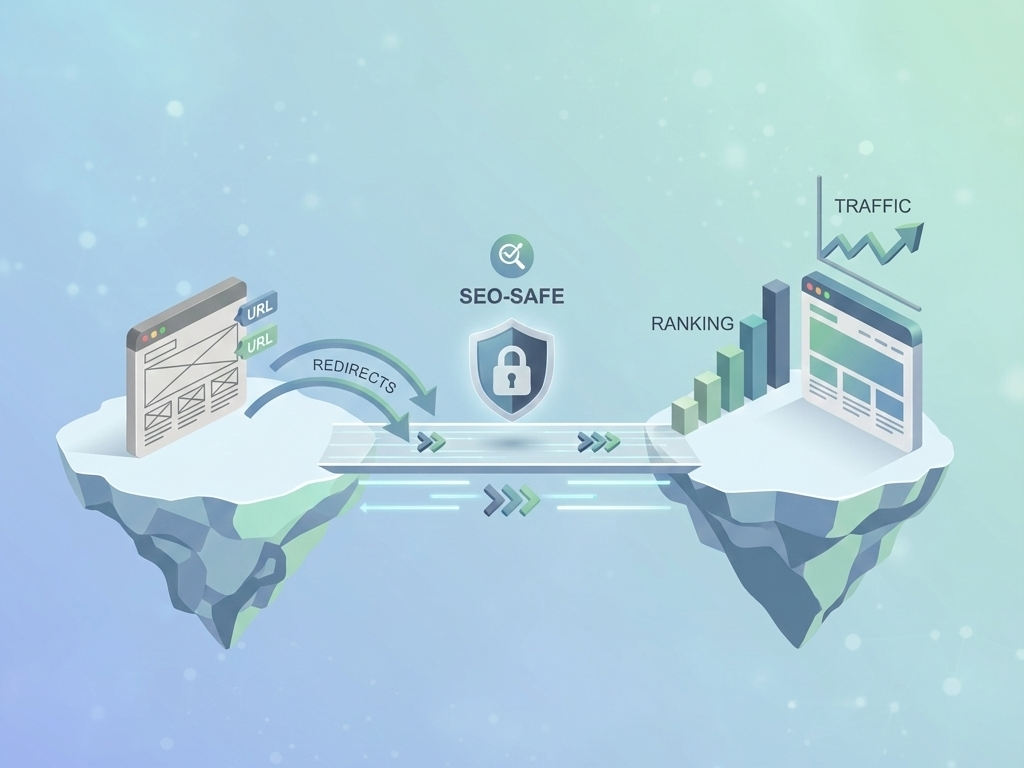
If there is a "secret" on how to migrate a website without losing SEO, this is it: 301 redirects.
A 301 redirect tells search engines that the content has moved. permanently. Transfer between the 90% and 99% of the link authority (Link Juice) of the old URL to the new one.
URL mapping
Go back to your master spreadsheet. You must create a column A (Old URL) and a column B (New URL).
- If the URL stays the same: Perfect.
- If the URL changes: You must assign the 301 redirect to the most relevant equivalent page.
- If the page disappears: Don't redirect it to the default Home (that's a soft-404 error for Google). Redirect it to the top category or to a similar product.
The technical implementation of these redirects can be done at the server level (Apache/Nginx) or via plugins in WordPress, although at the server level is always more performant. Learn more about the technical implementation of 301 redirects to avoid loops and errors.
Key recommendation: do it in layers and as "outside" of WordPress as possible. Ideally, first manage the redirects in the CDN (e.g., with rules in Cloudflare), then at the level of server (.htaccess in Apache or rules in Nginx) and leaves WordPress as last layer. The closer the redirection is to the edge, the better the performance, the less load on PHP and the less risk of plugin dependencies.
If your website is WordPress and you need a comfortable management from the panel (especially for small/medium volumes or for punctual adjustments), a very solid plugin is Redirection. However, if you are migrating a lot of URLs, prioritize CDN/server and use the plugin as a support for specific cases.
Example of 301 redirection in .htaccess file:
Redirect 301 /old-page/ https://www.tusitio.com/nueva-pagina/
Staging redirection test (if possible)
If you can, test redirections in your staging environment before the launch. This makes the migration easier because you arrive at D-Day with the "map" already validated, reduce improvisation and turn the launch into a short sequence of steps (publish + activate rules + verify).
A practical way to simplify it is to design redirects by path/prefix when the pattern allows it (and reserve the 1:1 mapping for exceptions only). For example, if the entire blog changes from /blog/ a /resources/You can cover most of the work with one rule per prefix, and then add one-off exceptions.
(Conceptual) example of redirection by prefix (path):
/blog/* → /resources/*.
And to validate that you didn't leave anything out, you can automate a check from your sheet (old URL → new URL) to verify that the old URL returns 301 and that the final destination ends in 200 (avoiding long chains).
Phase 4: The launch (D-Day)
The moment of truth. You've audited, you've tested in Staging and you've got your redirect map ready. When do we press the button?
Never do a migration on a Friday afternoon. If something breaks, you'll want to have your team (and your hosting) available. Ideally, it's best to launch on off-peak hoursthose times when your traffic is historically lower (usually early mornings or weekends, depending on your niche).
Best Practice: Before you change the DNS or dump the database, reduce the TTL (Time To Live) of your DNS for faster propagation in case you need to revert the changes.
A smart launch strategy minimizes the impact on the user experience. See recommendations on off-peak launch and technical update.
Phase 5: Post-migration validation and monitoring
This is where many fail. They think that when they "upload" the new website, the job is over. In reality, the damage control phase is just beginning.
Status code verification: 200 vs. 404
Remember that master list we created at the beginning with Sitemap and Search Console data. Now you should use a crawling tool (like Screaming Frog or a custom script) to crawl that list of old URLs.
The objective is to verify the behavior:
- Status 301: The old URL should redirect.
- State 200: The final destination URL must load correctly (OK).
- Status 404: If you find old URLs that give a 404 error, it means that you forgot to redirect them or the redirect is broken. This is an SEO hemorrhage that you must cauterize immediately.
It is vital that you check that they are all giving a 200 response at their final destination and not 404. A sudden increase in 404 errors will alert Google that your site is low quality or broken, affecting your Crawl Budget.
Updating of technical files
Once the website is online:
- Robots.txt: Be sure to remove the blocking rules you had in Staging.
- Sitemap.xml: Generate a new sitemap with the new URLs and submit it immediately to Google Search Console.
- Change of direction tool: If you have changed domains, use the "Change of address" tool in Search Console.
Common traffic-destroying mistakes
In closing, I want to briefly list the mistakes I've seen even large agencies make when they don't specialize in technical SEO:
- Forget the images: Images also position. If you change the folder path
/wp-content/uploads/and do not redirect, you will lose all traffic from Google Images. - Redirection chains: Avoid having Page A redirect to Page B, and Page B to Page C. This dilutes authority and slows down loading. Page A should redirect directly to C.
- Leaving the website in "Maintenance Mode" for too long: If the Google bot goes through and sees a 503 code for days, it will start de-indexing content.
- Failure to configure SSL correctly: Make sure that the http:// versions redirect to https:// and that there is no mixed content.
Conclusion
Knowing how to migrate a website without losing SEO is a mix of technical precision and business strategy. It's not just about moving files from one server to another; it's about preserving the digital reputation you've worked so hard to build.
If you follow these steps rigorously: pre-audit (Sitemap + GSC), secure staging, accurate 301 redirect mapping and an obsessive validation of 200 status codes post-launch, you will not only keep your traffic, but you are likely to improve your ranking thanks to a cleaner and faster web structure.
Remember that Google can take anywhere from a few weeks to a couple of months to fully process a major change. Monitor Search Console daily during the first month and correct errors as they appear. Good luck with the migration!
Recommended additional resources
- Official Google Site Migration documentation
- Google Search Console - Essential tool for monitoring indexing status.