In the fast-paced digital world, the security and stability of your website are fundamental pillars. An error, a failed update or a malicious attack can jeopardize hours of work and your online reputation. This is where a robust backup solution becomes not just a recommendation, but an absolute necessity. Today we are going to unpack one of the most powerful and versatile tools on the market: JetBackup WordPress. This comprehensive guide will teach you not only what it is, but how you can use it to automate your backups, restore your site with a click and perform migrations without breaking a sweat.
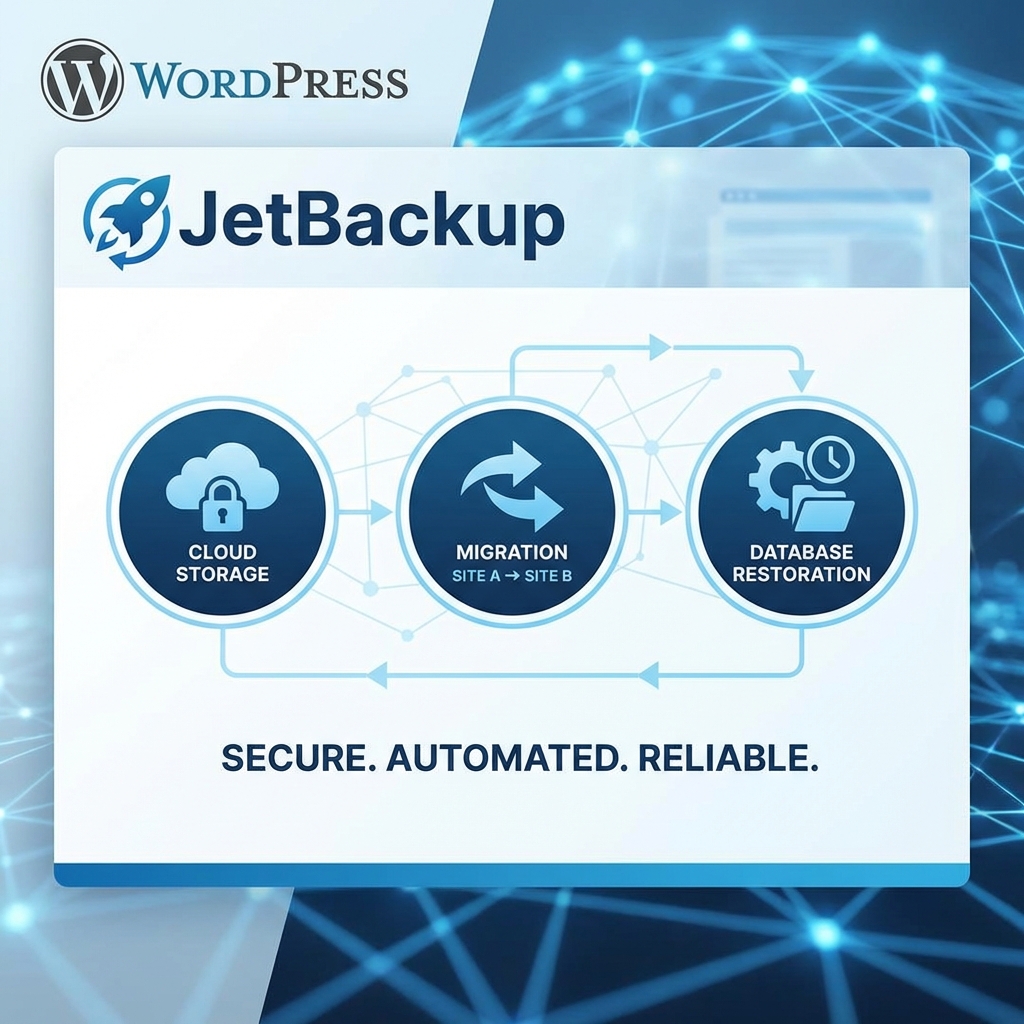
What Exactly is JetBackup for WordPress and Why Should You Pay Attention to It?
JetBackup is a name that resonates strongly in the hosting industry, known for being the #1 backup software for servers using panels such as cPanel or DirectAdmin. The plugin JetBackup WordPress is the extension of that power and reliability, brought directly to your web site's administration panel.
Its main value proposition is centered on the «Self-Service» concept. The idea is simple but revolutionary: give you, the site owner, full control to manage, create and restore your own backups in seconds, without having to open a support ticket with your hosting provider. In fact, providers who implement JetBackup at the server level report a up to 70% reduction in backup-related support tickets, This demonstrates the efficiency and ease of use of its ecosystem.
This plugin is not just another backup tool; it is a comprehensive solution designed to give you peace of mind and autonomy.
The Freemium Model: Getting Started with JetBackup WordPress for Free
One of the most common barriers to adopting a new tool is cost. JetBackup solves this elegantly with a «freemium» model. Its «Starter» plan is completely free for life and, unlike many competitors, is not merely a trial version, but a fully functional tool.
With the free version, you get surprisingly robust features:
- Unlimited Backups: You can create as many backup copies as you need, stored locally on your server.
- 2 GB of Cloud Storage: Includes 2 GB of premium JetBackup cloud storage, perfect for small sites or for saving the most critical copies externally.
- Unlimited restorations: Restore your site from any of your created backups, without limits.
- Granular Control: Choose whether you want to make a full backup, just the files, just the database, or even select specific database tables.
- Migration Capacity: You can download your copies for use elsewhere.
To get started, just install it from the official repository. You can download JetBackup - Backup, Restore & Migrate from WordPress.org and install it on your site in less than a minute.
Good Practice: Even if you have backups with your hosting, it is always advisable to have your own independent backup solution. The JetBackup WordPress plugin gives you that direct control and an extra layer of security.
JetBackup Pro: When and why should you upgrade?
While the free version is great for getting started, the Pro versions unlock the true potential of the tool, especially for growing websites, agencies or users managing multiple projects. The main, and most crucial, difference is the ability to send your backups to third-party cloud storage destinations.
According to the official JetBackup for WordPress product page, Pro functionalities are designed for advanced automation and external security.
Remote Storage Destinations (The Golden Rule of 3-2-1)
The golden rule of backups (3-2-1) says that you should have 3 copies of your data, on 2 different media, with 1 copy offsite. JetBackup Pro makes it easy for you by allowing you to connect to:
- Google Drive
- Amazon S3 (and compatible such as Wasabi or DigitalOcean Spaces)
- Dropbox
- Microsoft OneDrive
- Customized S3 destinations
Sending your copies to external storage protects you against server failures, eliminating the single point of failure.
Detailed Plans and Pricing
Payment plans are annual and scale according to your needs:
- Pro 1: $19.95/year for 1 site with 10 GB of JetBackup cloud storage.
- Pro 5: $49.95/year for up to 5 sites with 50 GB of storage.
- Pro 30: $99.95/year for up to 30 sites with 250 GB of storage.
Backup Retention Limits and Premium Support
With Pro plans, you can also set retention limits. For example, you can configure JetBackup to save only the last 7 daily, the last 4 weekly and the last 3 monthly backups. This automatically manages storage space and keeps your backup history clean and relevant. In addition, all Pro plans include 24/7 premium support to solve any questions or problems.
Step-by-Step Guide: How to Configure and Use JetBackup on your WordPress
Now that you know the theory, let's get to practice. Using JetBackup WordPress is incredibly intuitive.
Installation and Activation
Just like any other plugin:
- Go to your WordPress dashboard > Plugins > Add New.
- In the search engine, type «JetBackup».
- Search for «JetBackup - Backup, Restore & Migrate» and click «Install Now» and then «Activate».
- Once activated, you will see a new «JetBackup» menu in your WordPress sidebar.
2. Creating your First Manual Backup
For your immediate peace of mind, create your first backup manually:
- Go to JetBackup > Backups.
- Click on the «Create New Backup» button.
- A modal will open where you can select what to back up. By default, it will create a full copy. You can leave it like this or customize it.
- Click on «Create Backup» and wait for the process to finish. You will see the progress in real time.
3. Scheduling Automatic Backups (True Peace of Mind)
This is where JetBackup shines. Automation is key.
- Go to JetBackup > Schedules.
- Click on «Create New Schedule».
- Give your schedule a name (e.g. «Daily Database Backups»).
- Configure the backup type (database only in this example).
- Set the frequency: hourly, daily, weekly, monthly or even yearly. You can be very specific.
- If you have a Pro plan, here you would select the remote destination (e.g. Google Drive).
- Save the schedule. Done! JetBackup will take care of the rest.
Advanced Programming Strategy: Create multiple scheduling profiles. For example, a daily schedule for your database (which changes frequently) and a weekly schedule for your files (which change less). This optimizes the use of resources and storage space.
Restore and Migration: The Star Features of JetBackup WordPress
Having backups is only half of the equation. The other half is being able to use them quickly and effectively when you need them most.
One-Click Restore: How to Recover Your Site
If something goes wrong, recovery is a stress-free process:
- Go to JetBackup > Backups.
- Find the backup you want to restore in the list.
- Click on the «Restore» icon next to it.
- You will be asked to confirm the items to restore. You can restore everything or only specific parts (a plugin, a theme, the database).
- Confirm the restore and wait. JetBackup will take care of reverting your site to the saved state.
Critical Note: Before performing a full restore, it is an excellent practice to create a new backup of the current state of your site. This gives you a safe point of return in case the restore does not go as expected or if you choose the wrong copy.
Intelligent Migration and Multi-Domain Restore
These are two advanced features, documented both in the WordPress repository as on the official website, which solve common headaches:
- Smart Migration: This feature allows you to export a backup in a format compatible with cPanel and DirectAdmin hosting panels. It greatly facilitates the transfer of your site to a new provider using these platforms.
- Cross-Domain Restore: Need to move your site to a new domain or create a staging environment? This utility allows you to restore a backup to a domain different from the original, automatically updating the URLs in the database.
- Support for WordPress Multisite: If you manage a network of sites, JetBackup allows you to selectively restore sub-sites, an essential capability for complex environments.
Frequently Asked Questions (FAQ) about JetBackup for WordPress
Is JetBackup for WordPress really free?
Yes, the «Starter» plan is free for life and very functional. It includes unlimited backups and restores to your server and 2 GB of storage in their cloud. The paid Pro versions add remote destinations, retention limits and more storage capacity.
Do I need technical knowledge to use it?
No. The JetBackup WordPress interface is designed to be intuitive and easy to use, even for beginners. The most common operations, such as creating a backup or restore, are done with a few clicks.
What is the difference between the WordPress plugin and the cPanel version?
The cPanel version (JetBackup 5) is a server-side solution managed by your hosting provider. The WordPress plugin is installed on your site and gives you direct control from the WordPress panel. The best part is that they can be integrated: if your host uses JetBackup, the plugin can allow you to view and restore those server backups directly from WordPress.
Conclusion: Is JetBackup WordPress the Ultimate Solution for You?
After this thorough analysis, the answer is a resounding yes for a wide range of users. If you are looking for a WordPress backup solution that is reliable, powerful, easy to use and scalable, JetBackup WordPress is one of the best options on the market.
Their generous free plan is perfect to start protecting your site today. As your needs grow, Pro plans offer enterprise-level features at a very competitive price, especially integration with third-party cloud storage.
The combination of automation, granular control, and powerful restoration and migration tools make it an indispensable ally for any WordPress site owner. Don't wait for disaster to strike. Take control of your site's security now.
Explore JetBackup WordPress Plans and protect your digital project today.
Do you need help with this?
We'll migrate your website without losing your search rankings: preliminary audit, 301 redirects, and comprehensive verification. Discover our Web migration service without losing SEO.