If you have entered the «Site Health» section of your administration panel and have encountered the following warning message «A scheduled event is late» (or its Spanish version: «A scheduled event has been delayed.»), you are not alone. This is one of the most common and, at the same time, most misunderstood warnings in the WordPress ecosystem. As a Senior WordPress Developer, I've seen this message generate unnecessary panic in many website owners, making them believe that their website is broken when, in reality, it's usually a timing configuration issue.
In this in-depth article, we'll break down exactly what this error means, why it occurs (especially related to cache plugins and backups), and guide you step-by-step to the ultimate technical solution: implementing a system Cronjob.
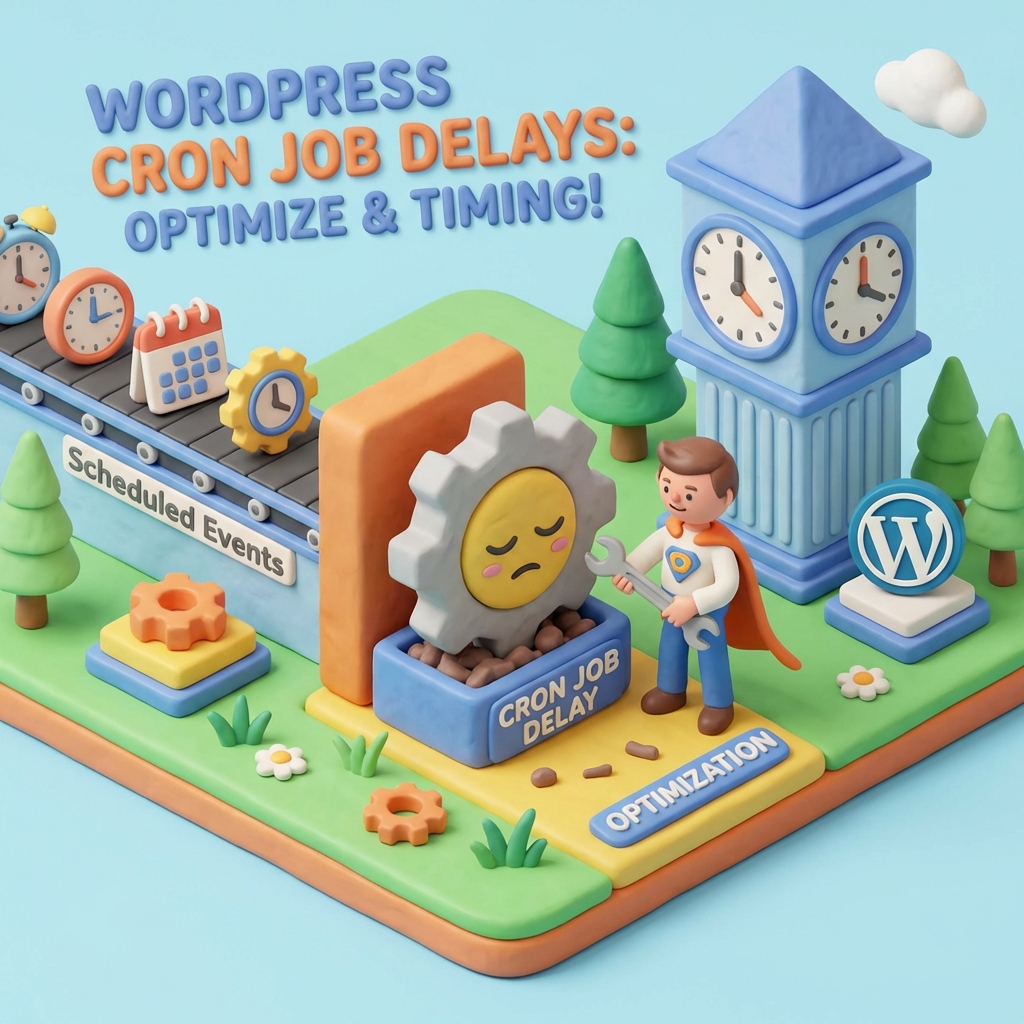
What does «A scheduled event is late» really mean in WordPress?
To understand this error, we must first understand how time works in WordPress. Unlike a server or your computer, WordPress has no real internal clock that runs in the background constantly. WordPress uses a system called WP-Cron.
The WP-Cron is a «virtual cron». It is only triggered when someone visits your website. If you have a task scheduled for 3:00 PM (such as publishing a post or making a backup), but no one visits your site until 5:00 PM, that task will not run until 5:00 PM. At that point, WordPress realizes that the task should have run earlier and marks the event as «delayed» (late).
Key Point: Difference between critical error and notification
It is vital to make an important distinction that is often overlooked. The message «The scheduled event is late to run» that appears in the Site Health tool is classified by many experienced developers not as a critical error, but rather as a notification of normal behavior.
This is especially true when the warning is linked to resource-intensive processes. According to technical discussions in the WordPress.org Support Forum, These delays are usually a sign that the server is handling the load, not necessarily that something is irreparably broken.
Common Error Causes: The Case of W3 Total Cache
In my experience optimizing sites for clients, I have noticed that this error does not appear out of nowhere. Often there is a specific culprit consuming cron resources. One of the most frequent scenarios involves image optimization.
The event w3tc_imageservice_cron
If you use the popular optimization plugin W3 Total Cache, The delayed event is very likely to have the technical name of w3tc_imageservice_cron. This event is in charge of processing and converting your images to new generation formats, such as WebP.
Image conversion is a heavy task for the server. When you enable auto-conversion in the plugin, this process consumes time and memory. If the process takes longer than WP-Cron expects, or if it is interrupted due to lack of resources, the «A scheduled event is late WordPress» alert will pop up.
As detailed in the community support threads, this behavior is expected when processing large media libraries, and stopping it could simply mean that image conversion was temporarily paused, not that your site stopped working.
If you want to go deeper into this hook specifically - how to check if it is active, when it is safe to disable it and how to properly configure the Image Service module - we wrote a dedicated guide: what is w3tc_imageservice_cron and how to solve it.
Real impact on your website
This is where the calm comes in. Should you be worried if you see this error? The short answer is: it depends, but it's generally not catastrophic for your web frontend.
- General Functionality: Despite the fact that the tool Site Health mark the event as late, this does not prevent the site from continuing to function properly user-facing. Your visitors will still see the content.
- Publications and Updates: Specifically, this delay in an image service (such as the one mentioned from W3TC) does not negatively impact the scheduling of your blog posts or WordPress automatic updates.
The critical risk: Backups
However, there is one area where this error cannot be ignored: backups. The integrity of your backups depends entirely on the cron running on time.
The «missed schedule» error is a fundamental issue for security and maintenance plugins such as UpdraftPlus. If cron fails consistently, your scheduled backups will not be performed, leaving you vulnerable to any disaster. The reliability of cron is essential for successful backups, restores and migrations, as outlined in the official UpdraftPlus troubleshooting documentation.
The Ultimate Technical Solution: Implementing a System Cronjob
If you manage a professional website, relying on user traffic to trigger your scheduled tasks (WP-Cron's default method) is a bad practice. The industry standard solution for eliminating the «A scheduled event is late WordPress» error and ensuring stability is to disable WordPress cron and use server cron.
Here's how to do it step by step. This is the same configuration I implement on all my clients' sites to ensure performance.
Step 1: Disable the default WP-Cron
First, we must tell WordPress to stop trying to run the cron every time someone loads a page. This will also slightly improve the loading speed of your website.
You must edit your wp-config.php (located in the root of your WordPress installation) and add the following line before where it says «That's all, stop editing»:
define('DISABLE_WP_CRON', true);Step 2: Configure the Cronjob on the Server (cPanel)
Now that WordPress does not run the tasks by itself, we must instruct the server to do so every so often (for example, every 5 or 15 minutes). This ensures that the tasks run on time, whether or not there are visitors to the site.
Log in to your hosting control panel (cPanel, Plesk, or SSH terminal).
2. Look for the section called «Cron jobs» o «Cron Jobs».
3. Create a new cron job with the time setting «Once every 15 minutes» (or every 5 minutes if you have a site with a lot of traffic and transactions).
4. In the command field, you must use an instruction that calls the file wp-cron.php. The most robust command is usually:
wget -q -O - https://tudominio.com/wp-cron.php?doing_wp_cron >/dev/null 2>&1Note: Be sure to replace «yourdomain.com» with your real URL.
Why does this solve the problem?
By switching to a «system cronjob», you remove the dependency on traffic. The server will run the script religiously at the defined interval. This solves the vast majority of delayed event problems and, as confirmed by the WordPress support forum, is the recommended configuration for serious production environments.
Additional diagnostic tools
If after applying the server solution you still see warnings, or simply want to have granular control over what is happening on your site, I recommend installing a cron management plugin.
WP Crontrol: Your best ally
The plugin WP Crontrol is an essential tool in any developer's tool belt. It allows you to:
- View a list of all scheduled events.
- Identify exactly which event is failing (whether it is a backup, an image optimization or an update check).
- Manually execute events with one click («Run now») to unblock stuck queues.
- Remove orphaned events from plugins that you have already uninstalled.
Often, the error «A scheduled event is late» is due to an event that was «hung» in the past. With WP Crontrol, you can remove that event or force its execution, thus clearing the error in Site Health.
Frequently Asked Questions about delayed events in WordPress
Does this error affect my SEO?
Directly, no. Google does not penalize your site because an internal cron event is delayed. However, if the cron delay prevents a cache plugin from regenerating files or your sitemap from updating, there could be a minor indirect impact. The speed improvement from disabling native WP-Cron (Step 1 above) can have a positive impact on your Core Web Vitals.
Why does it happen on sites with low traffic?
On sites with few visitors, the native WP-Cron is rarely activated. If you set a post to publish at 8:00 AM but no one visits your site until 2:00 PM, the post will go out 6 hours late and WordPress will generate the late event warning.
Why does it happen on sites with a lot of traffic?
Paradoxically, it also occurs on very large sites. If a site has multiple simultaneous visits, there may be race conditions where multiple processes try to block the cron at the same time, or simply the server is so busy serving pages that background tasks run out of PHP resources to run on time.
Conclusion
The message «A scheduled event is late WordPress» (A scheduled event has been delayed) is a warning to heed, but not to fear. In most cases, it is an indicator that your native cron system is not sufficient for the tasks your plugins (such as W3 Total Cache or UpdraftPlus) need to perform.
Transitioning from a visit-based cron to a real system cron is a maturity step for any web project. Not only will it eliminate this annoying Site Health bug, but it will ensure that your backups are ready when you need them and that your server doesn't waste resources checking tasks every time a user logs into your site.
If you have followed the steps in this guide, your WordPress should now be running like a Swiss watch. Remember to periodically check the «Scheduled Events» tab if you use WP Crontrol to make sure everything is flowing correctly.
Do you need help with this?
We identify and resolve performance issues, errors, and configuration problems with your WordPress site at their root. Discover our WordPress Technical Audit Service.