Imagine the situation: You're ready to update your plugins, install a new theme, or perform that critical WordPress core update. You click the update button and, instead of seeing the progress bar, you're met with an annoying popup asking for FTP connection credentials. Or worse, you see the error message: «The file system could not be accessed.» (or in English: Could not access WordPress filesystem).
In my experience as a senior WordPress developer, this is one of the most common crashes faced by beginners and intermediate system administrators alike. Although it seems like a complex server issue, the reality is that it boils down to a matter of permissions and security. In this article, I will guide you step-by-step to fix this problem for good, ensuring that you can manage your website without interruption.
Why does WordPress ask for FTP credentials? The Root Cause
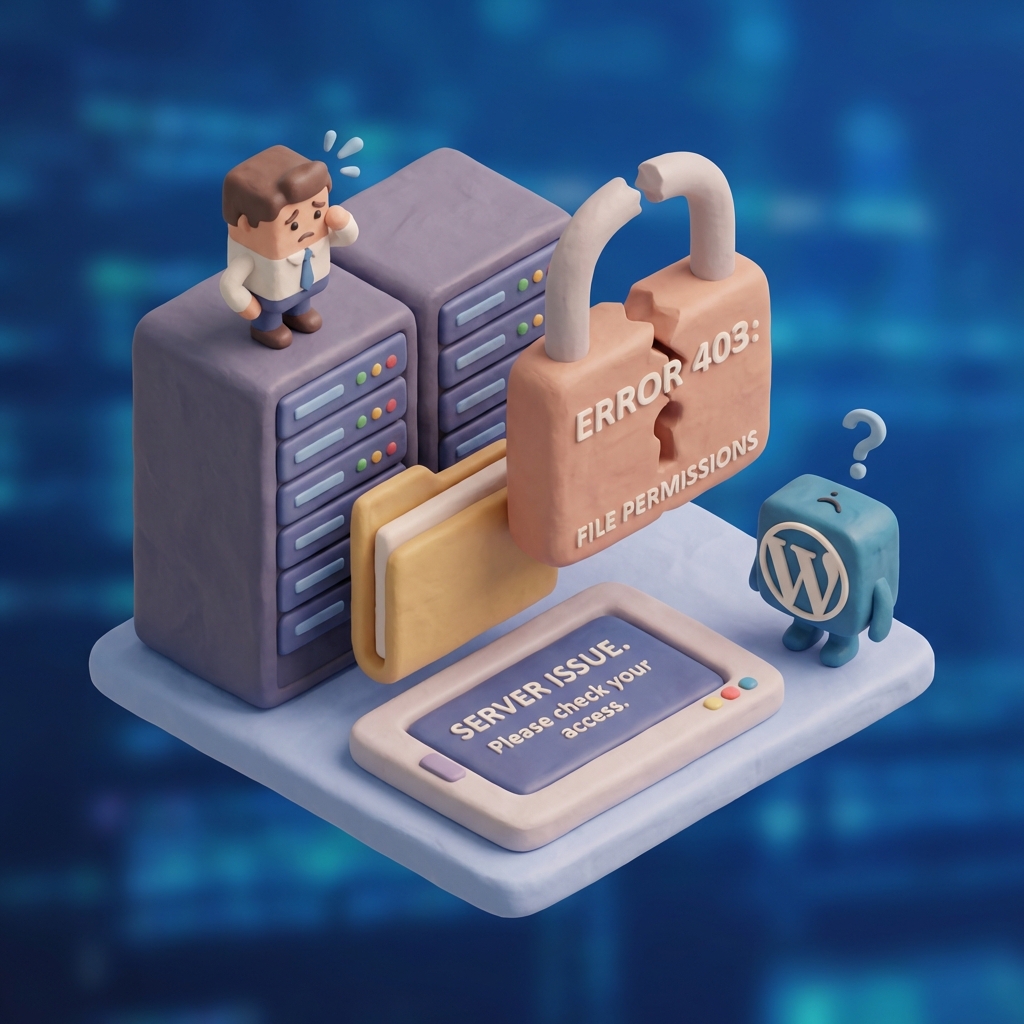
Before applying any «patches», it is critical to understand what is going on under the hood. When you see the error «Could not access filesystem WordPress», the system is telling you that the PHP script running WordPress does not have the necessary permissions to write or modify files on the server directly.
WordPress has a built-in file abstraction system. When you try to write to the /wp-content (to upload a plugin, for example), performs a security check. It verifies whether the user running the web server (commonly called the www-data in Apache/Nginx) is the same user who owns the files in your installation.
- The conflict: If your web server is running under a user (ex.
apache) and your files belong to another user (e.g. your personal FTP user), WordPress detects a security discrepancy. - Reaction: To avoid modifying files that «don't belong to you», WordPress switches to a secure method and asks you for your FTP credentials to perform the operation as if you were the one uploading the files.
Solution 1: Quick correction with FS_METHOD (Recommended for most)
For 90% users who are on shared hosting or who need an immediate solution, the most effective way to resolve the «Could not access filesystem WordPress» error is to define a constant in the global configuration file.
We can instruct WordPress to bypass the strict security check and use the file system directly. This is done by editing the wp-config.php.
Steps to implement FS_METHOD: direct
- Access your website files through an FTP client (such as FileZilla) or through your cPanel's File Manager.
- Locate the file
wp-config.phpin the root folder (usuallypublic_html). - Download a backup copy of the file (always a good practice).
- Edit the file and look for the line that says
/* That's all, stop editing! Happy publishing. */. - Just above that line, paste the following code:
define('FS_METHOD', 'direct');By saving and uploading this file back to the server, you are telling WordPress: «I trust the environment, write the files directly without asking for passwords».
FS_METHOD direct on misconfigured servers could allow malicious scripts to modify files. However, on most modern, managed hostings, this configuration is safe and standard.For more technical details about the configuration constants, you can consult the official WordPress documentation on wp-config.php.
Solution 2: Correction of Permissions and Ownership (Chown and Chmod)
If you manage your own VPS server (DigitalOcean, Linode, AWS) or have SSH access, the above solution is a «bypass». The solution correct and more secure is to fix the ownership of the files to match the web server user.
In my workflow developing high traffic sites, I prefer to ensure that permissions are strict rather than forcing the direct method if the environment allows it. Here's how to do it.
Identify the web server user
Generally, on Linux systems (Ubuntu/Debian) with Apache or Nginx, the user is www-data. On CentOS systems it can be apache.
Change owner (Chown)
Access your terminal via SSH and navigate to the directory where WordPress is installed. Run the following command to assign ownership of all files to the web server:
sudo chown -R www-data:www-data /var/www/html/tusitioBe sure to change /var/www/html/tusitio by the actual path of your installation.
Correct read/write permissions (Chmod)
Once the owner is correct, we must make sure that the directories and files have the proper permissions. The golden rule in WordPress is: 755 for folders and 644 for files.
Execute these commands in your terminal inside the root folder of your site:
# Change all directories to 755
sudo find . -type d -exec chmod 755 {} ;

# Change all files to 644
sudo find . -type f -exec chmod 644 {} {};
Solution 3: FTP/SSH credentials configuration in wp-config.php
There are scenarios where your hosting provider has very restrictive security settings that prevent the direct method (`FS_METHOD direct`) and you do not have SSH access to change owners. In these cases, to prevent the popup window from appearing every time, you can hardcode the credentials in the configuration file.
WordPress allows you to define the FTP connection constants directly in wp-config.php. In this way, the CMS will use these credentials automatically in the background.
Add the following lines to your file wp-config.php:
define('FTP_USER', 'your_ftp_user');
define('FTP_PASS', 'your_ftp_password');
define('FTP_HOST', 'ftp.yoursite.com');
define('FTP_SSL', false); // Set true if your server supports SSL
Use of SSH keys (More secure)
If your server allows it, it is much more secure to use SSH keys instead of plain FTP passwords. WordPress supports this natively:
define('FTP_PUBKEY', '/home/user/.ssh/id_rsa.pub');
define('FTP_PRIKEY', '/home/user/.ssh/id_rsa');
define('FTP_USER', 'user_ssh');
define('FTP_HOST', '127.0.0.1.1:22');
Environment-specific solutions
The «Could not access filesystem WordPress» error manifests itself differently depending on where your site is hosted. Here I break down the specifics for local vs. production environments.
On Localhost (XAMPP, MAMP, Docker)
It is extremely common to see this error when developing locally, especially on macOS or Linux, due to how these systems handle user permissions versus the user running XAMPP or Docker.
- XAMPP/MAMP: The solution is almost always to use
define('FS_METHOD', 'direct');. Since it is a local environment, the security risks are minimal. Do not complicate yourself by trying to set up a local FTP server. - Docker: If you use containers, the problem is usually that the mounted volume belongs to your system user (UID 1000) and the container is expecting
www-data(UID 33). The ideal solution is to configure yourDockerfileto adjust the permissions when building the image, or use the direct method in development environment (DEV).
On Shared Hosting (cPanel, Plesk)
On quality shared hostings (SiteGround, Bluehost, etc.), the server is usually configured with suPHP or FastCGI, which allows PHP scripts to run with the same user as the owner of the files. If you see this error here, it is usually because:
- Files were migrated manually and the original permissions were lost.
- The hosting has a very old or restrictive security configuration (DSO handler).
If after applying the FS_METHOD If you continue to have problems with shared hosting, I recommend you contact technical support. Sometimes, the provider needs to apply a chown recursive from their side that you cannot perform.
Frequently Asked Questions about file system access
Is it safe to leave FS_METHOD set to ‘direct’?
Yes, in the vast majority of modern cases it is safe, as long as the rest of your server is properly configured. This is the standard on most managed WordPress hostings.
Why does this happen after a migration?
When you move a site from server A to server B (for example, using a migration plugin or moving zip files), the files may be unpacked with the «root» user or the system user, instead of the specific user of your hosting account, generating the «Could not access filesystem» conflict.
I have tried everything and it still fails, what do I do?
Check if you have disk space. Sometimes a «cannot write» error is mistaken for permissions, when in fact the server is full (Disk Quota Exceeded).
Resolving the error «Could not access filesystem WordPress» is a rite of passage for any webmaster. Whether you opt for the quick fix of the wp-config.php or the granular correction of permissions via terminal, the important thing to understand is that you are managing the security of how your server allows modifications.
If you follow these steps, not only will you eliminate that annoying FTP pop-up, but you'll have a more robust WordPress installation ready for frictionless automatic updates.
Do you need help with this?
We identify and resolve performance issues, errors, and configuration problems with your WordPress site at their root. Discover our WordPress Technical Audit Service.