In my experience as a senior WordPress developer, there are few messages on the «Site Health» screen that generate as much frustration as this one: «Your site cannot communicate securely with other services.» (or by searching for it in English: «Your site is unable to communicate securely with other WordPress services»).
Unlike a critical bug that completely takes down your website, this bug is silent but lethal for maintenance. It prevents your site from talking to the official WordPress.org repository, which means you won't be able to update plugins, themes, or the WordPress core, leaving you vulnerable to security breaches. In this technical guide, we'll break down step-by-step how to diagnose and repair this SSL/cURL communication flaw, covering everything from issues in local environments to complex configurations on VPS servers.
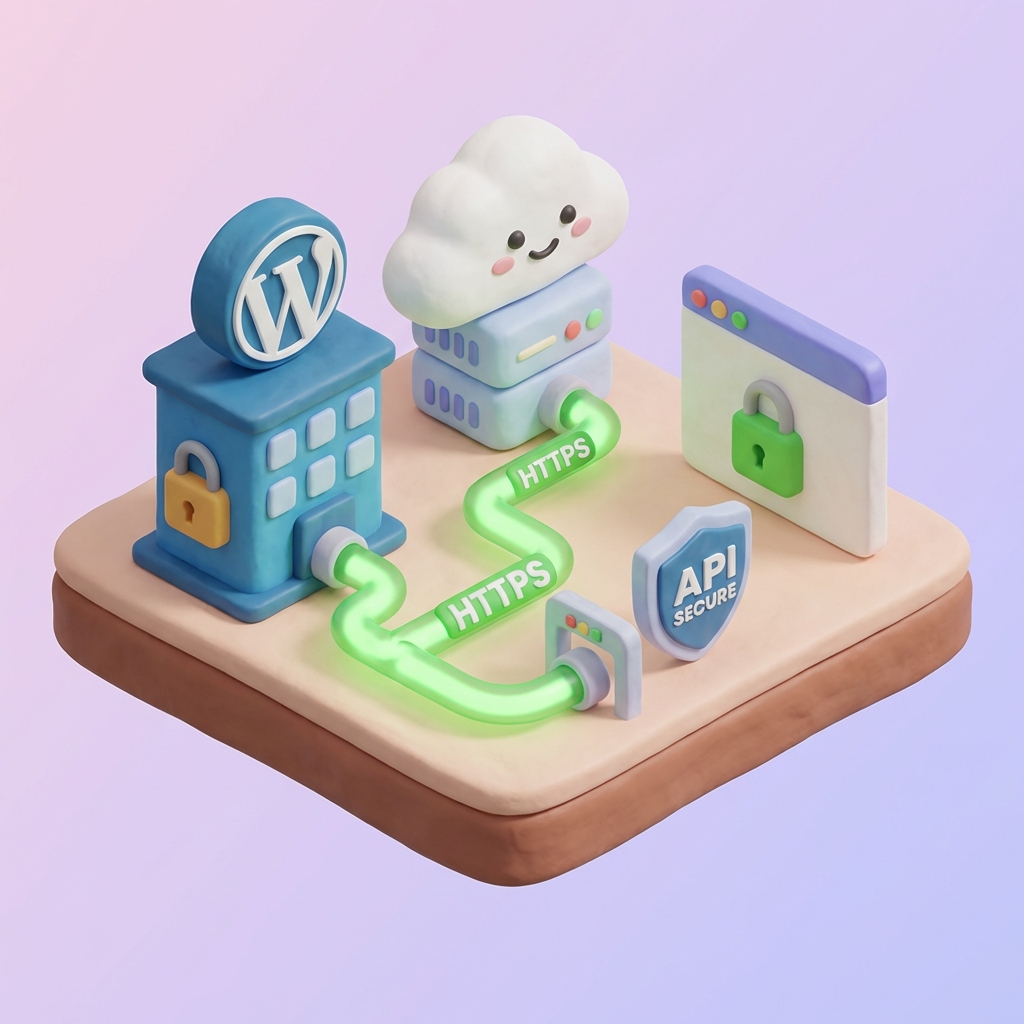
What does this secure connection error really mean?
Before jumping into editing files, it's crucial to understand what's going wrong under the hood. WordPress is built to constantly connect to external servers, primarily those of WordPress.org, to check for updates, install plug-ins and verify system integrity.
When you see the message «Your site cannot communicate securely with other services», it technically means that the cURL request your server sent to the outside failed to establish a secure SSL handshake.
/wp-admin/includes/update.php.This confirms that the hosting server is unable to establish a secure outbound path to the WordPress API. If you want to dig deeper into how the update file handles these requests, you can refer to technical guides on how to fix secure connection errors in WordPress detailing the behavior of update.php.
Initial Diagnosis: Client-Side Factors
As a developer, I've learned that before blaming the server, we must rule out the obvious. Sometimes, the error is not in your WordPress, but in your own computer or browser.
Verify the date and time of your system.
It may sound trivial, but it is a common and easily overlooked technical cause. SSL certificates have a start date and an expiration date. If the clock on your computer (or server, if you have root access) is set to an incorrect date (e.g. 2015), the browser or server will interpret the WordPress.org security certificate as «not yet valid» or «already expired».
2. Browser cache and old certificates
Sometimes your site is secure, but your browser is «remembering» an old, corrupt version of the connection. If the browser fails to establish the HTTPS connection due to an outdated cache, it could be trying to validate an SSL certificate that no longer exists.
To solve problems where the site is unable to provide a secure connection due to customer, If the error disappears in incognito, try accessing it from an incognito window. If the error disappears in incognito, the problem is purely your browser's cache.
Server Level Solutions and SSL Certificates
If the above steps did not solve the problem, the conflict lies in your hosting configuration or in the implementation of your security certificate.
3. Expired or misconfigured SSL Certificates
A root cause of the secure connection failure is the state of your own SSL certificate. Although the error mentions connecting to «other services», a misconfigured local certificate can break the chain of trust.
- Expired Certificates: Let's Encrypt certificates are renewed every 90 days. If your server's cron job failed, your certificate may have expired.
- Mixed Content: If you have elements loading over HTTP on an HTTPS page, modern browsers will block the request, and WordPress may report this as a communication failure.
I recommend that you manually check the padlock icon in the browser for validity details. There are detailed methods for diagnose certificates and mixed content in WordPress that will help you identify if the installation of the certificate was incorrect.
4. VPS Server Interference and DDoS Attacks
The hosting environment plays a crucial role. I have noticed different behaviors depending on whether the client uses a Shared Hosting or a Virtual Private Server (VPS/Cloud).
In Shared Hosting
If you are on a shared hosting and you see this error suddenly, it is possible that the server is under a DDoS (Denial of Service) attack. The attack saturates the bandwidth, causing timeouts on the connection to WordPress.org. In this scenario, the solution is usually to wait a few minutes or contact the hosting support.
In VPS or Dedicated Servers
The problem here is usually DNS resolution. If your server cannot «find» the IP address of the api.wordpress.org, the connection will fail. In advanced cases, I have had to connect via SSH to edit the file /etc/hosts and point the server directly.
# Example of connection verification via terminal (SSH)
curl -I https://wordpress.org
If the above command returns an error, your server has a blockage at the DNS or Firewall level. To solve DNS resolution problems, it is sometimes necessary to point the server directly to the servers of WordPress.org by manual configuration.
The problem unique to local environments (Localhost/MAMP)
If you are developing a site on your own machine (using LocalbyFlywheel, XAMPP, WAMP or MAMP) and you encounter the error «Your site cannot communicate securely with other services», the cause is almost always the lack of a recognized SSL certificate.
By default, local environments do not have SSL certificates signed by a global authority. They use self-signed certificates. When WordPress tries to make a secure request (cURL) to itself or validate a strict external connection, it fails because it doesn't trust your local certificate.
php.ini, the board of directors curl.cainfo must point to a file cacert.pem valid. If this line is commented out or missing in your local environment, cURL will not have a list of certificate authorities to trust.To solve this in a development environment, it is often necessary to generate a self-signed certificate for localhost. Educational resources such as WeWP explain how to fix secure connection problems in local environments properly configuring the certificate paths.
Advanced Verification: The PHP cURL Extension
Finally, we must talk about cURL. This is the PHP library that WordPress uses to send and receive data. If cURL is outdated or disabled on your server, none of the above solutions will work.
To verify if this is the problem:
- Go to Tools > Site health in your WordPress dashboard.
- Click on the tab Information.
- Scrolls down to the section Server.
- Find the PHP version and the cURL version.
WordPress requires modern versions of cURL and OpenSSL to communicate with current secure protocols (TLS 1.2 or 1.3). If you see a very old version, you should ask your hosting provider to update the cURL library on the server.
Conclusion
The error «Your site is unable to communicate securely with other WordPress services» (or its Spanish version) is an obstacle blocking the growth and security of your website. Although it may seem daunting due to its technical nature, the solution almost always lies in one of three pillars: the SSL configuration, the server connectivity (DNS/Firewall) or the local development environment.
My final recommendation: always start by checking the simplest things (the time on your computer and the status of your SSL certificate). If the problem persists, contact your hosting provider with the information you have learned here about cURL and Firewall blocks; a good technical support will know how to interpret this data immediately.
Do you need help with this?
We identify and resolve performance issues, errors, and configuration problems with your WordPress site at their root. Discover our WordPress Technical Audit Service.