If you've recently logged into the «Site Health» section of your admin panel, chances are you've come across a persistent, yellow-marked recommendation: «You should remove inactive plugins.» (or in English, its original version: «You should remove inactive WordPress plugins».»). At first glance, this may seem like a minor, almost cosmetic suggestion. After all, if the plugin is «off», what harm can it do?
As a Senior WordPress developer focused on the profitability and security of websites, I assure you that this warning is much more than just spring cleaning. Inactive plugins represent latent security risks, unnecessary overhead and what we call «technical debt».
In this article, we will break down exactly why this error appears, the real risks it hides and how to fix it step by step, based on official documentation and my technical experience optimizing high-traffic sites.
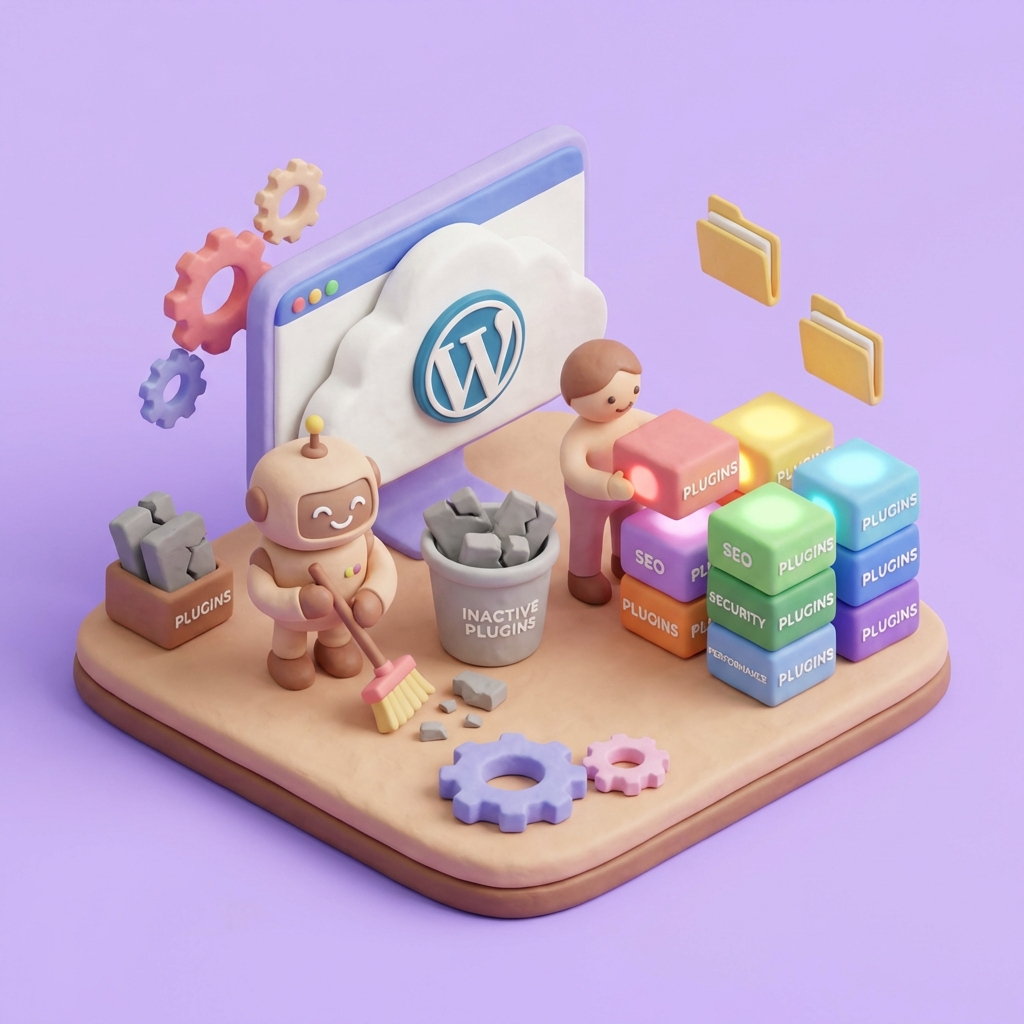
What does «You should remove inactive plugins» really mean?
WordPress introduced the Site Health tool to help website owners keep their installations safe and fast. When you see the message «You should remove inactive plugins», the system has detected software installed on your server that is currently not running on the frontend nor in the backend of your site.
Many users fall into the trap of thinking that «Deactivate» equals «Delete». It's not. By deactivating a plugin, you are simply telling the WordPress database to stop loading that specific code on page startup. However, the physical files (PHP, JS, CSS) remain on your server.
Latent security risks: The danger of executable code
The main reason you should heed this warning is security. There is a common myth: «If the plugin is inactive, hackers can't use it». In my experience auditing hacked sites, this is absolutely false.
Even if a plug-in is deactivated, its files remain on the server and constitute «executable code». PHP files inside the plugin folder can be called directly through an HTTP request if the server is not perfectly configured to block it.
According to technical discussions in the official forums, moderators warn that the hackers can attack and execute this code even without the plugin being active.. This is especially critical if you are dealing with old or outdated software.
The common attack scenario
Imagine you installed a form plugin two years ago, deactivated it but did not delete it. Today, a «Remote Code Execution» (RCE) vulnerability is discovered in that old version of the plugin. A bot scans your website, detects the `/wp-content/plugins/plugin-vulnerable/` folder and executes the malicious script directly, completely ignoring that WordPress has it «disabled».
2. Technical impact on performance and the database
Beyond security, keeping plugins inactive affects the overall health of your infrastructure. They are not invisible to the system.
Space consumption and backups
Every file counts. Inactive plugins consume valuable disk space. On servers with limited storage, this is an obvious problem. But the real impact is seen in backups.
- Slower backups: Your backup processes will take longer to complete.
- Complex restorations: If your site goes down, restoring a bloated 2GB backup is much slower than an optimized 500MB backup. Every minute of downtime is money lost.
Overhead in the requests (Overhead)
WordPress security and development experts say that WordPress keeps loading information about these plugins during every page request. The system needs to scan the plugin directory to know what is available, adding unnecessary overhead to site processing.
Also, many plugins, when installed, create custom tables in your database or add rows to the `wp_options` table. By simply deactivating them, that data stays there, slowing down database queries unnecessarily.
3. The «Dead Weight» Factor: Obsolescence Vulnerabilities
In web development, we often talk about «Dead Weight». This often occurs when we install plugins for a single purpose (such as a migration plugin or a thumbnail regenerator) or for a trial period, and then forget about them.
These plugins become a major risk because they are inactive, stop updating. It's natural: if you don't see it working, you ignore the update notice. According to security sources such as Patchstack, these plugins accumulate known security vulnerabilities that are specifically exploited by hackers. because they know that administrators neglect their maintenance.
4. Dilemma of future use: When to keep a plugin deactivated?
As a developer, I understand that not everything is black and white. What if you deactivated a plugin because it caused a momentary conflict or because you plan to use it next week?
There is an important nuance, especially with reputable premium plugins (such as WPML or WooCommerce Add-ons) that are planned to be used soon. If the intention of use is definitive, it is not strictly obligatory to eliminate them immediately., but the decision rests with the user and his or her risk tolerance.
My professional recommendation:
If you are debugging a bug, it is fine to have it inactive for a few hours or days. But if the plan is to «use it maybe in 6 months», delete it. You can always reinstall the latest version when you really need it. It is preferable to fix the bugs that cause the deactivation rather than keep them on indefinite hiatus, as «Site Health» will continue to flag them as potential targets.
5. Detection and elimination methods
To fix the «You should remove inactive WordPress plugins» warning, you need to identify what is left over. There are two main methods: visual interface and technical inspection.
Method A: Via WordPress Dashboard (The standard method)
This is the easiest and safest way for most users:
- Go to your WordPress administration panel.
- Navigate to the section Plugins > Installed plugins.
- At the top, you will see filters. Click on the link that says Inactive.
- This will filter the list to show you only those that are not in use.
- Select them and choose «Delete».
Method B: Technical Way (FTP/SFTP) for hidden residues
Sometimes, a plugin gets deleted badly or leaves residual files that the WordPress panel no longer sees, but are still taking up space and being a risk. This is where manual inspection comes in.
You can manually inspect your server's directory for find folders that do not correspond to active plugins.
/public_html/wp-content/plugins/
Steps for cleaning via FTP:
- Connect to your server using an FTP client such as FileZilla.
- Navigate to the folder
wp-content/plugins. - Compare the list of folders you see there with the list of active plugins in your WordPress dashboard.
- If you see a folder named, for example,
plugin-former-xand you know you don't have it installed, that folder is hazardous waste. - Make a backup copy of that folder on your computer (just in case) and delete it from the server.
How to perform a Deep Clean
Removing the «You should remove inactive plugins» warning is the first step, but to truly optimize SEO and speed, I suggest going one step further.
Database Cleanup
As I mentioned earlier, deleting the file does not always delete the data. Many plugins leave «orphaned» configurations in the table. wp_options with the attribute autoload = yes. This means that this data is loaded on EVERY visit, even if the plugin no longer exists.
To fix this, you can use database optimization tools like WP-Optimize or Advanced Database Cleaner, which can scan orphaned tables and obsolete cron data.
Conclusion: Less is more
The message «You should remove inactive plugins» is not a trivial WordPress suggestion; it is a fundamental security guideline. In my daily work optimizing sites for clients, the golden rule is digital minimalism: have only what you use.
Keeping plugins inactive is like leaving your home windows open just because «no one is coming in at the moment». It's an unnecessary invitation to security and performance problems.
Summary of actions to be taken today:
- Check the «Inactive» tab in your plugins panel.
- Remove everything that is not essential to the current operation of your website.
- If you have doubts about a premium plugin, download the latest version to your computer and delete the one on the server.
- Perform a cleanup via FTP if you suspect old residues.
Keeping your WordPress installation clean not only improves security, but ensures that your infrastructure is agile, scalable and ready to convert visitors into revenue.
Do you need help with this?
We design websites that are built to turn visitors into customers—not just to look good. Discover our strategic web design service.