If you have recently logged in to your administration panel and you have encountered a red or yellow warning that says «Your site is running an obsolete version of PHP (%s), which is not receiving security updates.» (or in its original English version: «Your site is running on an outdated version of PHP (%s) which does not receive security updates. It should be updated WordPress»), don't panic, but don't ignore it either. As a senior WordPress developer, I've seen how this message is often the prelude to serious security issues if not addressed in time. In this article, we'll break down exactly what it means, why it's critical to your business and, most importantly, how to fix it step-by-step without breaking your website.
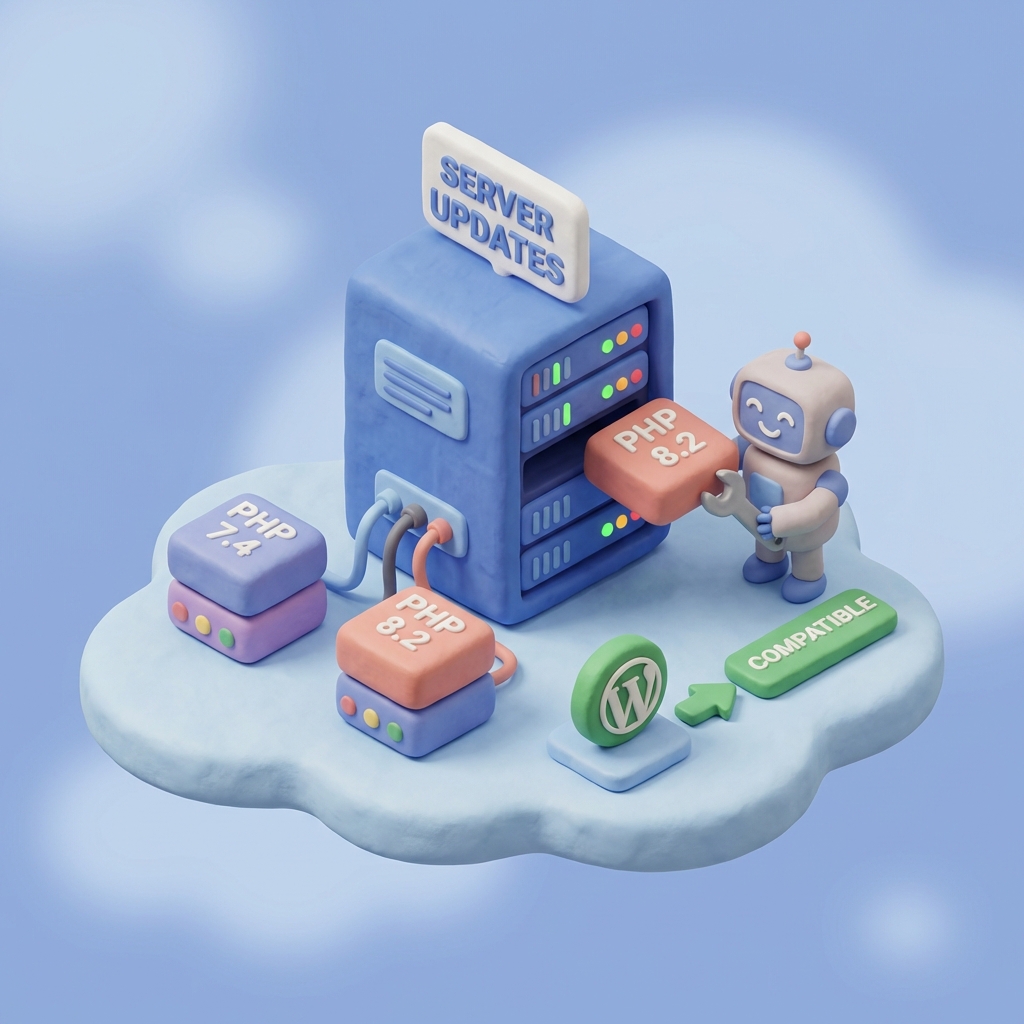
What exactly does this WordPress error message mean?
To understand the seriousness of the issue, we must first translate the technical message into business and security terms. When WordPress shows you the warning «Your site is running an outdated version of PHP.», is telling you that the engine that runs your website has reached its end of life. End of Life (EOL or End of Life).
PHP isn't just a secondary technical requirement; it's the scripting language WordPress is written on. It controls everything: from how your products are displayed on the frontend to how you manage your users on the backend. Without PHP, your website wouldn't even exist. Therefore, updating it is an essential part of maintaining any digital infrastructure.
Key Point: EOL (End of Life) Status
The message appears specifically because the version used (commonly 7.4.x on many older sites) has been discontinued. This means that the developers of the PHP language have stopped issuing updates for that specific version, making it officially obsolete. Even if your site is still «online», the engine underneath it is abandoned.
For more technical details on why these warnings appear on some sites and not on others, please refer to this discussion in the WordPress.org support forum on PHP upgrade warnings.
The Big Confusion: WordPress Compatibility vs. PHP Support
In my experience managing multiple client sites, this is the number one question: «Mark, if my site is working fine and WordPress says it's compatible, why do I need to upgrade?».
There is a vital distinction that causes this confusion. WordPress, as a CMS, makes a huge effort to maintain backward compatibility. Technically, WordPress can run on older versions such as PHP 7.2 or 7.4. However, WordPress compatibility does not protect you against the intrinsic vulnerabilities of the PHP language.
The warning is generated because the motor PHP itself is no longer supported by its creators. It's like having a classic car (WordPress) that works perfectly, but whose tire manufacturer (PHP) has stopped producing safe spare parts for the wheels. Eventually, driving becomes dangerous, not because of the car, but because of the base components.
The PHP Release Life Cycle: Why is this happening now?
The PHP ecosystem moves fast to ensure speed and security. It is crucial to understand how the release schedule works in order to plan for the long-term maintenance of your website.
- Active Support (2 years): Each new stable version of PHP receives full support and constant enhancements for two full years from its release.
- Security Support (1 additional year): The third year is limited to critical security updates only. No new features are added, but security holes are plugged.
- End of Life (EOL): At the end of this three-year period, the version enters EOL status. All safety provisions are cut off.
It is at this precise moment when it becomes imperative to upgrade. If you are seeing the error «Your site is running on an outdated version of PHP».», If you are using a version that is more than three years old, you are probably using a version that is more than three years old. You can read more about the impact of this on your site's architecture in this article on why WordPress warns you about outdated PHP versions.
The real risks of ignoring this warning
Many website owners ignore this warning because «everything looks good on the outside». However, the risk is invisible until it is too late. The real danger lies in the unpatched vulnerabilities.
Imagine that tomorrow a critical vulnerability is discovered in PHP 7.4 that allows an attacker to execute malicious code on your server (what we call RCE or Remote Code Execution). As this version is on EOL:
- No official patch will be released to correct it.
- Your site will be exposed indefinitely.
- Firewalls and security plugins can mitigate the attack, but they cannot fix the underlying flaw in the server.
This leaves the WordPress site open to compromise, regardless of whether the WordPress core is up to date. In addition, newer versions of PHP (such as the 8.x series) offer massive performance improvements. In speed tests, PHP 8.1 and 8.2 can handle many more requests per second than their predecessors, which improves your SEO and user experience.
Step-by-Step Guide to Upgrading PHP on your Server
Now that we understand the urgency, let's move on to action. As a developer, I follow a strict protocol to perform these updates minimizing the risk of downtime.
Step 0: Preparation (Required)
Before touching anything, you must make a full backup (Backup) of your website. This includes the database and all files. If something goes wrong and your site is incompatible with the new PHP version, you will need to restore it immediately.
Step 1: Verify Plugins and Themes Compatibility
The main reason a site «breaks» when upgrading PHP is that an older plugin or theme uses code that has been removed in newer versions of PHP. Before upgrading:
- Update WordPress to its latest version.
- Update all your plugins and your theme.
- If you have abandoned plugins (no updates in more than 1 year), look for modern alternatives.
Step 2: Upgrade the version in the Hosting Panel
The process varies depending on your hosting provider, but most use cPanel or similar custom panels.
For cPanel users:
- Log in to your cPanel account.
- Look for the «Software» section.
- Click on "Select PHP Version" o «MultiPHP Manager».
- Select the domain of your website.
- In the version drop-down menu, choose the recommended version (currently PHP 8.1, 8.2 or higher).
- Click on «Apply» or «Set as current».
In some managed hosting environments (such as Kinsta, WP Engine or SiteGround), this process may be in a tab called «Tools» or «Environment».
Step 3: Technical Verification
Once the change has been made, visit your website. Browse through several pages, test the contact forms and make a test purchase if you have an e-commerce. If everything loads correctly, congratulations! You have solved the problem.
If you want to technically verify that the change has been applied, you can create a temporary file to check the server information.
<?php
// Crea un archivo llamado info.php en tu carpeta raíz
// Pega este código dentro:
phpinfo();
?>
By visiting tusitio.com/info.php, If the server is running, you will see the exact version that the server is running. Remember to delete this file immediately after the test for security reasons.
Troubleshooting: What to do if the site breaks down?
If after upgrading to a recent version such as PHP 8.2 your site shows a white screen (the dreaded «White Screen of Death») or critical errors, follow these steps:
- Reverse: Go back to your hosting panel and revert the PHP version to the previous one (e.g. 7.4). Your site should be back up and running in no time.
- Review Logs: Enable debug mode in WordPress by modifying your file
wp-config.php:
define( 'WP_DEBUG', true );
define( 'WP_DEBUG_LOG', true );
define( 'WP_DEBUG_DISPLAY', false );
Try the PHP update again. The file debug.log inside the folder wp-content will tell you exactly which plugin or file is causing the conflict. With that information, you can contact the plugin developer or replace the plugin.
For more details on how to identify conflicts, the community offers excellent resources. I recommend that you revisit the discussion on upgrade and compatibility warnings to see similar cases.
Frequently Asked Questions about upgrading PHP
Which version should I upgrade to?
At this moment, my professional recommendation is to aim at PHP 8.1 or PHP 8.2. They are stable, very fast versions and have active security support up front. Avoid upgrading to versions that are about to expire.
Should my hosting do this automatically?
Many quality hosting providers force upgrades eventually to protect the integrity of their servers. However, you should not wait for them to do so. If they do it automatically and your site is not compatible, your website will stop working without warning. It is better to take control and do it yourself in a planned manner.
Conclusion
The message «Your site is running on an outdated version of PHP (%s) which does not receive security updates» is not just a nuisance in your admin panel; it's a critical wake-up call about the health of your digital business. Ignoring it exposes your site to unnecessary security risks and deprives you of the performance improvements your users deserve.
Keeping PHP up to date is one of the most impactful maintenance tasks you can perform. Not only do you ensure future compatibility with WordPress, but you armor your site against known vulnerabilities. As a developer, my advice is clear: make a backup today and plan your migration to PHP 8.x as soon as possible.
Remember that web technology advances rapidly. What is standard today will be obsolete tomorrow. Keeping up to date is not an option, it is a necessity to survive in the digital environment.
Do you need help with this?
We identify and resolve performance issues, errors, and configuration problems with your WordPress site at their root. Discover our WordPress Technical Audit Service.