Did you know that one of the simplest WordPress configurations is also one of the most common gateways for hackers? We're talking about the database prefix, that little «wp_» that precedes all your important tables. Leaving it by default is like leaving your house key under the doormat with a sign that says «key here». In this comprehensive guide, we'll show you why it's crucial and exactly how to change the prefix of WordPress tables to harden your website. Whether you are a beginner or an advanced user, here you will find the perfect method for you.
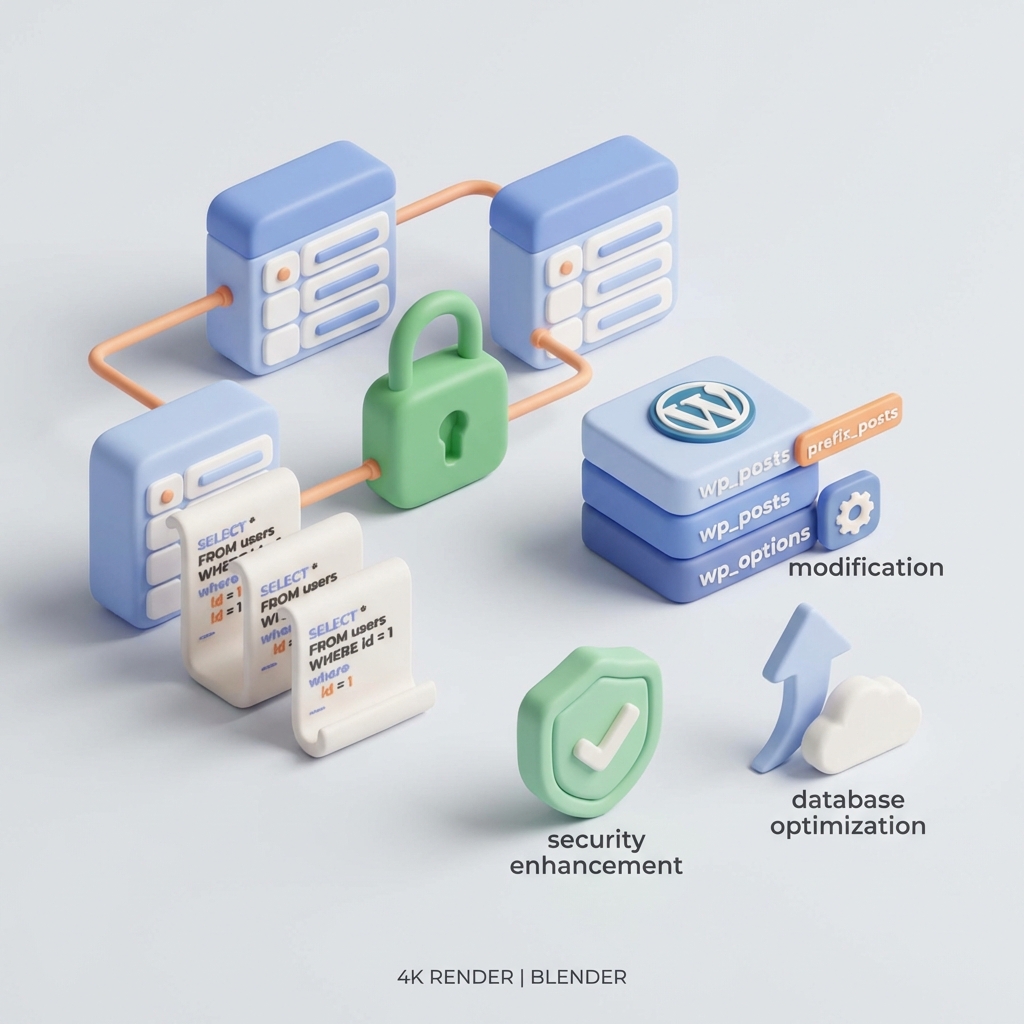
The Why and What: The Importance of Security and what is the Database Prefix?
Before we get into the nitty-gritty, it's essential to understand what we're about to modify and why it's so important. Every WordPress installation relies on a database to store everything: your posts, pages, comments, user settings, plugin settings and more. To keep everything organized, WordPress groups this information into tables.
The «prefix» (or prefix is a short identifier that is appended to the beginning of the name of each of these tables. By default, WordPress uses wp_. Thus, your tables will be called wp_posts, wp_users, wp_options, etc.
Why is it a Security Risk?
The problem is that hackers know this. The vast majority of automated attacks, especially those from SQL injection, are programmed to attack WordPress sites by assuming they use the default prefix wp_. These bots attempt to execute malicious code directly on known tables such as wp_users to create an administrator user or in wp_options to redirect your site.
By changing the prefix of wp_ to something unique and random (such as wpsite_a8x3_a8x3_), you create an immediate barrier. The automated attacker, not finding the tables he is looking for, will fail in his attempt. It is a simple, free and tremendously effective security measure.
Essential Preparation and Precautionary Measures: Backup as a Safety Net
Before touching a single line of code or installing any plugins, there is one step that is not optional, it's absolutely mandatory.
PERFORMS A COMPLETE BACKUP. We are about to change the heart of your website. A minor error can result in the dreaded «Error establishing a connection to the database» and leave your site completely inaccessible. To skip this step is to risk losing everything.
Your backup should include two key components:
- The Database: This is the element that we are going to modify directly. You can export it using tools like phpMyAdmin from your hosting panel.
- The WordPress Archives: Especially the file
wp-config.php, file, which is located in the root directory of your installation. This file contains the connection between WordPress and your database.
If you are not sure how to do it manually, use a trusted plugin. Tools such as UpdraftPlus o All-in-One WP Migration allow you to create and restore complete backups with a few clicks. Do not continue until you have a recent and secure copy saved.
Methods to Change WordPress Table Prefixes
There are two main ways to accomplish this task. The choice depends on your level of technical comfort. Let's look at both.
Method 1: The Easy Way with Plugins (Recommended for Beginners)
For most users, using a plugin is the safest and easiest way to change the prefix of WordPress tables. These plugins automate the process, renaming the tables and updating the file. wp-config.php for you, minimizing the risk of human error.
One of the most reliable and straightforward plugins for this task is Brozzme DB Prefix.
Steps to change the prefix with a plugin:
- Install and activate the plugin: Go to Plugins > Add new, If you are using Brozzme DB Prefix, search for «Brozzme DB Prefix», install it and activate it.
- Access the configuration: Go to Tools > DB Prefix.
- Choose the new prefix: The plugin will show you your current prefix (
wp_) and it will ask you to enter a new one. It is crucial to choose something random. Avoid predictable names likewordpress_or the name of your site. Use a combination of letters and numbers, always ending with an underscore (ex:wps_k8f4n_). - Execute the change: Click on the «Change DB Prefix» button. The plugin will take care of the whole process: renaming tables, updating
wp-config.phpand search for references in the database.
Some all-in-one security plugins such as iThemes Security also include this functionality within their database hardening tools.
Method 2: The Manual Way (For Advanced Users)
This method requires access to your server files (via FTP or hosting file manager) and to your database (via phpMyAdmin). Proceed with extreme caution and only if you are comfortable editing configuration files and executing SQL queries. Remember: you have already made your backup!
The manual process consists of three main parts: edit wp-config.php, rename the tables in the database and update the values within a couple of key tables.
Step 1: Put the site in Maintenance Mode
To avoid data corruption while working, it is a good idea to put your site in maintenance mode. You can do this with a plugin or by creating a .maintenance in the WordPress root directory.
Step 2: Edit the file wp-config.php
Connect to your site via FTP or use your cPanel's file manager. Locate the file wp-config.php in the root folder. Download it and open it in a plain text editor. Find the following line:
$table_prefix = 'wp_';Change it to your new prefix, for example:
$table_prefix = 'wps_k8f4n_';Save the file, but do not upload it to your server yet. If you do it now, your site will break because WordPress will not find the tables with the new prefix.
Step 3: Rename the Tables in the Database
Access your database through phpMyAdmin (usually available in your hosting panel). Select your site's database in the left column. You will see a list of all your tables (wp_commentmeta, wp_commentsetc.).
You must rename each of them. You can do it one by one, but it is tedious and error prone. The most efficient way is to run SQL queries. Click on the «SQL» tab and paste the following queries, one for each standard WordPress table. Remember to replace wps_k8f4n_ for the new prefix you chose.
RENAME table `wp_commentmeta` TO `wps_k8f4n_commentmeta`;
RENAME table `wp_comments` TO `wps_k8f4n_comments`;
RENAME table `wp_links` TO `wps_k8f4n_links`;
RENAME table `wp_options` TO `wps_k8f4n_options`;
RENAME table `wp_postmeta` TO `wps_k8f4n_postmeta`;
RENAME table `wp_posts` TO `wps_k8f4n_posts`;
RENAME table `wp_termmeta` TO `wps_k8f4n_termmeta`;
RENAME table `wp_terms` TO `wps_k8f4n_terms`;
RENAME table `wp_term_relationships` TO `wps_k8f4n_term_relationships`;
RENAME table `wp_term_taxonomy` TO `wps_k8f4n_term_taxonomy`;
RENAME table `wp_usermeta` TO `wps_k8f4n_usermeta`;
RENAME table `wp_users` TO `wps_k8f4n_users`;
Note: If you have plugins that have created their own tables (ex: wp_woocommerce_sessions), you will also have to rename them.
Step 4: Update the table options
The table options (now called wps_k8f4n_options) contains some fields that also use the old prefix. The most important one is wp_user_roles. Run the following query to update it:
UPDATE `wps_k8f4n_options` SET `option_name` = 'wps_k8f4n_user_roles' WHERE `option_name` = 'wp_user_roles';Step 5: Update the table usermeta
Similarly, the table usermeta stores user information using keys that include the prefix. We need to search and replace all instances. Run this query:
UPDATE `wps_k8f4n_usermeta` SET `meta_key` = REPLACE(`meta_key`, 'wp_', 'wps_k8f4n_') WHERE `meta_key` LIKE 'wp_%';Step 6: Upload your file wp-config.php modified
Now that the database is ready, it's time to upload the file wp-config.php you edited in Step 2, overwriting the old one on your server.
Post-Exchange Verification and Troubleshooting Common Problems
You're almost done! Now is the crucial moment to check that everything is working.
Verification Checklist:
- Frontend access: Open your site in an incognito window. Does it load correctly?
- Backend access: Try accessing your administration panel (
tusitio.com/wp-admin). - Start and Close of Session: Can you log in with your username and password? Can you log out?
- Basic Functionality: Browse through the pages and entries - do they look good? Try saving an existing entry or creating a new one.
Troubleshooting Frequent Errors
- «Error establishing a connection to the database»: This is the most common error. It usually means that the prefix in your
wp-config.phpdoes not exactly match the new table names in the database. Check both carefully - even a simple typo can cause this! - I can't log in or permissions problems: If you can see the frontend but cannot log in, it is likely that you have forgotten to update the fields in the tables.
optionsandusermeta(Steps 4 and 5 of the manual method). - Plugins or themes that do not work: Some poorly coded plugins or themes may have «hardcoded» (written directly into the code) the prefix
wp_. If a specific plugin stops working, check its configuration or contact its developer.
Best Practices and Future Considerations
Changing the prefix of WordPress tables is an excellent security measure, but it is even more effective if it is integrated into an overall strategy.
The Best Time for Change
The ideal time to change the database prefix is during the initial installation of WordPress. In the famous 5 minutes installer, there is a field to define the table prefix. Change it from wp_ to something random from the beginning saves you all this post-processing.
Remember that WordPress security is based on layers. Changing the prefix is an important layer, but not the only one. Combine it with other essential practices:
- Secure and unique passwords for all users.
- Two-factor authentication (2FA) to protect logins.
- Maintain WordPress, plugins and themes always up to date.
- Use a quality security plugin such as Wordfence or Sucuri Security.
- Consult official safety guides such as Hardening WordPress.
Conclusion: A Small Change, a Big Victory for Security
Congratulations, you have taken a giant step towards strengthening the security of your website. Although it may seem technical, change the prefix of WordPress tables is one of the actions with the highest return on investment in terms of protection against automated attacks. Whether you choose the convenience of a plugin or the control of the manual method, you have eliminated a known attack vector and made your site a much more difficult target.
Don't leave your site exposed with the default settings. Check your prefix today and, if it is still wp_, take action now!
Do you need help with this?
We secure your WordPress site against attacks: security audit, comprehensive hardening, and continuous monitoring. Discover our WordPress security and hardening service.