Have you ever spent hours customizing your WordPress theme design, only to see all your work disappear after a simple update? It's one of the most common and costly frustrations in the WordPress world. The solution, however, is surprisingly simple and robust: learn how to make a child theme in WordPress. This technique is not only good practice, it is a fundamental pillar for any website owner who wants to customize their design in a safe and professional manner. In this comprehensive guide, we'll take you by the hand to understand what it is, why it's crucial, and how you can create your own, both manually and automatically.
What Exactly is a Child Theme and Why Should You Use It?
Before diving into the «how», it is vital to understand the «what» and the «why». Imagine that your main subject (or «parent subject») is an original and valuable painting. You wouldn't paint directly over it to touch it up, would you? Instead, you would place a transparent sheet on top of it and make your modifications on it. If you make a mistake or want to change something, just work over the sheet, leaving the original painting intact.
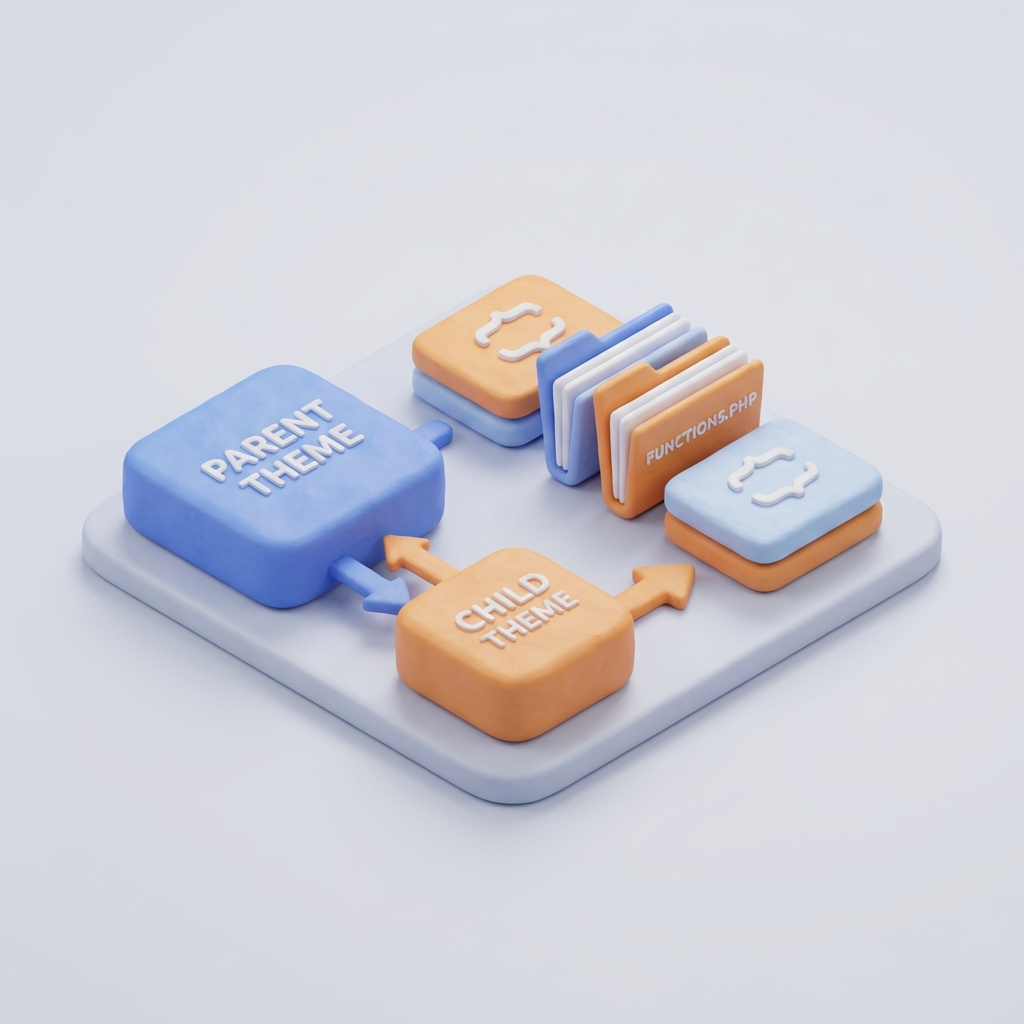
A child theme works according to the same logic. According to the experts at the renowned hosting company Webempresa, a child theme is a secondary theme that inherits all functionalities, styles and files of the main theme. Its fundamental purpose is to allow you to make custom code modifications (CSS, PHP, etc.) with the absolute certainty that these changes will not be lost when the parent theme is updated.
Recommended Practice
Creating a child theme from the beginning of a project, even if you don't plan to make immediate modifications, is one of the best practices in WordPress development. It sets you up for the future and establishes a clean and professional working foundation.
The Critical Advantages of Using a Child Theme on Your Website
Using a child theme goes far beyond simply not losing your changes. It offers tangible benefits in security, maintenance and organization.
- Upgrade Protection: This is the main advantage. Theme developers release updates to fix bugs, add functionality or, most importantly, patch security vulnerabilities. Without a child theme, you face a dilemma: either you update and lose your customizations, or you don't update and leave your website exposed to risks.
- Simplified Safety and Maintenance: The use of a child theme is an essential security practice. It allows you to fearlessly apply all the security updates to the parent theme. This way, your site benefits from the latest enhancements and protections without compromising the customization work you have done.
- Organization and Clean Code: Instead of having CSS snippets in the WordPress Customizer and custom functions in a snippets plugin, a child theme centralizes everything. All of your modifications reside in the child theme's folders, which facilitates organization, maintenance and debugging. In addition, you can optimize your website in a more controlled way.
- Safe Learning and Development: A child theme acts as a sandbox. You can experiment with code, test new features and learn about WordPress theme development without the risk of breaking your main theme. If something goes wrong, simply delete or fix the file in the child theme.
Critical Note on Security
Not updating your theme for fear of losing customizations is one of the main causes of hacked WordPress sites. A child theme eliminates this risk completely, allowing you to keep your website secure and up to date.
How to Make a Child Theme WordPress: The 2 Main Methods
There are two main ways to create a child theme. The choice depends on your comfort level with the technology and the control you want to have. Both methods are valid and achieve the same result.
- The Manual Method: It requires access to your web files (via FTP or cPanel's File Manager) and the creation of a couple of text files. It is the preferred method by developers for its total control.
- The Plugin Method: This is the simplest and fastest route, ideal for beginners or for those who prefer an automated solution.
Method 1: Manual Creation (The Professional Way)
As intimidating as it sounds, this process is surprisingly simple. You just need a text editor (such as Visual Studio Code, Sublime Text, or even Notepad) and access to your site files.
Step 1: Create Child Theme Folder
First, connect to your web site using an FTP client (such as FileZilla) or the File Manager of your hosting panel. Navigate to the WordPress themes folder, which is located at:
/wp-content/themes/
Inside this folder, create a new directory for your child theme. A good convention is to name it with the name of the parent theme followed by «-child». For example, if your parent theme is «Astra», name the new folder «astra-child».
Step 2: Create the File style.css
This is the most important file. It's the one that tells WordPress that this folder contains a child theme and to which parent theme it belongs. Inside the folder you just created (e.g. «astra-child»), create a new file named style.css.
Open this file and paste the following code at the top, adapting it to your theme:
/*
Theme Name: Astra Child
Theme URI: http://ejemplo.com/astra-child/
Description: Child Theme for Astra Theme
Author: Your Name
Author URI: http://ejemplo.com
Template: astra
Version: 1.0.0
*/
Let's analyze the most important lines:
- Theme Name: The name that will appear in your WordPress dashboard. Give it a descriptive name.
- Template: This is the crucial line! It must contain the exact folder name of the parent theme. It is case sensitive. If the parent theme folder is
astra, here you must writeastra.
Attention!
If the value of the `Template` field does not exactly match the name of the parent theme directory, the child theme will not work. Double check this value.
Step 3: Create the File functions.php for Gluing Styles
In the past, it was used @import in the CSS, but that practice is outdated and detrimental to performance. The correct and modern way is to «enqueue» the stylesheets of the parent and child theme using the functions.php.
Create a new file named functions.php inside your child theme folder. Paste the following PHP code into it:
<?php
add_action( 'wp_enqueue_scripts', 'my_theme_enqueue_styles' );
function my_theme_enqueue_styles() {
    wp_enqueue_style( 'parent-style', get_template_directory_uri() . '/style.css' );
    wp_enqueue_style( 'child-style', get_stylesheet_uri(), array( 'parent-style' ) );
}
?>
This code performs two key actions: first, it loads the stylesheet of the parent theme (parent-style) and then load the child theme (child-style), making sure that the parent's is loaded first. This is the method recommended by the official WordPress documentation for Child Themes and is the basis for proper operation, as detailed in expert guides such as those from Webempresa and Gonzalo Navarro.
Step 4: Activate your Child Theme
You're done! Now go to your WordPress dashboard, to Appearance → Themes. You will see your new child theme listed next to the others. Simply click «Activate». Your site will look exactly the same as before, but now all the customizations you make will be protected.
Method 2: Using a Plugin (The Quick and Easy Way)
If you find the manual method too technical, don't worry. There are excellent plugins that do all the work for you in seconds.
The most popular and recommended plugin is Child Theme Configurator.
- Go to Plugins → Add new in your WordPress dashboard.
- Search for «Child Theme Configurator», install and activate it.
- Once activated, go to Tools → Child Themes.
- In step 1, select your parent theme from the drop-down menu and click «Analyze». The plugin will check if the theme is eligible.
- Choose a name for the directory of your new theme.
- Select the «Use the WordPress style queue» option to queue the styles, which is the best practice we saw in the manual method.
- Click on the «Create New Child Theme» button.
- That's it! Now you can go to Appearance → Themes and activate your new child theme.
First Steps to Customize your Child Theme
Now that you have your child theme active, how do you use it? This is where the magic begins.
- To add custom CSS: Simply add your CSS code to the end of the file
style.cssof your child theme. These rules will overwrite those of the parent theme. - To add PHP functions: Add any custom functions or code snippets to the file.
functions.phpof your child theme. - To modify theme templates (.php files): If you want to modify, for example, the footer (
footer.php), simply copy the filefooter.phpfrom the parent theme folder to your child theme folder. WordPress will automatically use the child theme version. You can then safely edit that copied file.
Frequently Asked Questions (FAQ)
Does creating a child theme slow down my website?
No. The performance impact is practically zero. The extra call in `functions.php` to load a stylesheet is an extremely fast operation. The security and maintenance benefits far outweigh any theoretical microsecond difference.
What happens if I delete the parent topic?
Your website will break. The child theme is completely dependent on the parent theme to function, as it inherits all of its files. Never delete the parent theme if you have an active child theme.
Is a child theme always necessary?
If you plan on doing any kind of modification other than through the WordPress Appearance Customizer (i.e. adding CSS, PHP or modifying template files), the answer is a resounding YES. It's the only way to do it correctly.
Conclusion: Make the Leap to Professional Web Management
Saber how to make a child theme in WordPress is more than a technical trick; it's a fundamental skill that separates the amateurs from the pros. It gives you the freedom to customize without limits, the peace of mind to update without fear, and the structure to keep your code organized and clean.
Whether you choose the manual route for total control or the convenience of a plugin, the result is the same: a more secure, robust and future-proof website. Don't wait for the next update to regret not having done it, create your child theme today and take ultimate control of your WordPress site!
Do you need help with this?
We design websites that are built to turn visitors into customers—not just to look good. Discover our strategic web design service.